Browser Issues During OTP Verification: Easy Fixes & Tips
44. Browser Issues During OTP Verification: Easy Fixes
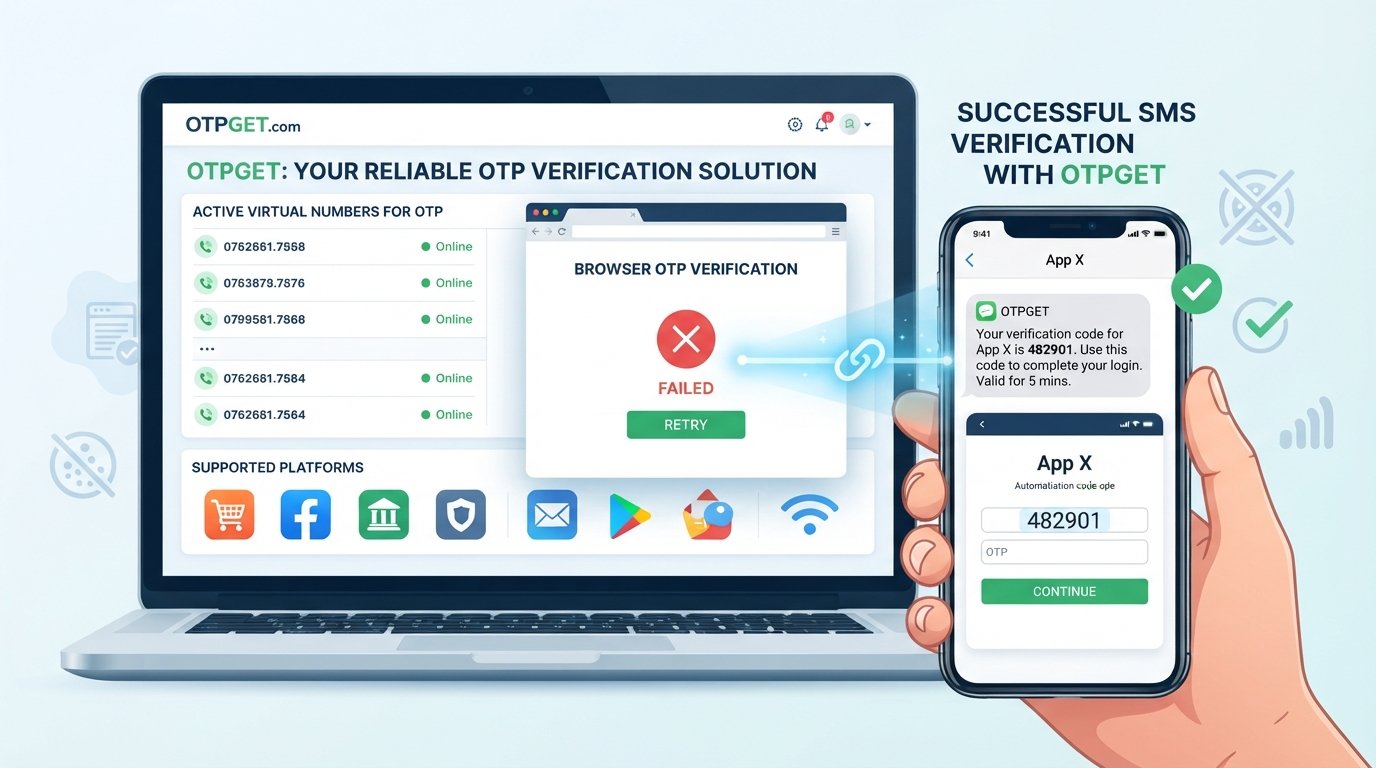
Entering a one-time password should be simple: receive the code, type it into the verification field, and continue. Yet sometimes the code is correct and the browser still refuses to complete verification.
These browser issues during OTP verification can be frustrating, especially when you are trying to log in, confirm an account, or complete an online verification process. The problem may not be the OTP itself. Browser cache, cookies, JavaScript settings, extensions, connectivity, compatibility, or an expired verification session can all interfere.
The good news is that many OTP verification problems can be resolved with a few straightforward checks. This guide explains the most common causes and shows you how to troubleshoot them step by step. If you still need a practical option for OTP verification, OTPGET can also be worth considering when it fits your verification needs.
Why Browser Issues Can Affect OTP Verification
An OTP, or one-time password, is a temporary verification code used to confirm that a user can access a particular phone number, email account, or verification channel.
The browser plays an important part in the process. After you enter the code, the verification page may need to communicate with the service, maintain your session, and process information stored in browser cookies.
Several browser-related factors can disrupt that process, including:
-
Outdated browser software
-
Corrupted or outdated cached files
-
Cookie or session problems
-
JavaScript being disabled
-
Browser extensions interfering with page scripts
-
Poor or unstable internet connectivity
-
Browser compatibility issues
-
Verification pages timing out
-
An OTP session expiring before completion
As a result, you may see messages such as “OTP verification failed,” “verification code invalid,” or a general OTP verification error, even when you believe you entered the correct code.
Common Browser Issues During OTP Verification
Outdated Browser
Older browser versions may not handle certain website features correctly. If the verification page depends on newer web functionality, an outdated browser can contribute to browser OTP issues.
Check whether your browser has an available update and install it if appropriate.
Corrupted Cache
A browser cache stores temporary website files to help pages load efficiently. Occasionally, those stored files can become outdated or corrupted.
This can create browser cache problems, including pages that behave incorrectly or repeatedly display an old version of a verification screen.
Cookie and Session Problems
Cookies can help a website remember information about your current session. If cookies are blocked, deleted unexpectedly, or contain conflicting session information, verification may not complete correctly.
JavaScript Disabled
Many interactive verification pages use JavaScript to process buttons, forms, timers, and other page functions.
If JavaScript is disabled, the OTP field or verification button may not behave as expected. Make sure JavaScript is enabled when the website requires it.
Browser Extensions
Privacy tools, ad blockers, script blockers, and other extensions can sometimes interfere with website functionality.
If an OTP page appears incomplete or a verification button does nothing, an extension may be contributing to the problem.
Private or Incognito Browsing
Private browsing can change how cookies, stored sessions, and extensions behave. It is not automatically a problem, but if verification works normally in a standard browser window, the private browsing environment may be worth checking.
Internet Connection Issues
A code can arrive successfully while the browser struggles to communicate with the verification service.
An unstable connection may cause a verification page to time out, fail to submit the code, or appear stuck.
Browser Compatibility
Not every website behaves identically across all browsers. If the verification process repeatedly fails in one browser, trying another supported browser can help determine whether compatibility is involved.
OTP Not Received? Check These Things First
Sometimes the browser is working normally, but the OTP not received problem happens before the code ever reaches you.
Start with these basic checks:
-
Confirm that the phone number or email address was entered correctly.
-
Check whether your mobile network is working normally.
-
Look for the message if you are expecting an SMS OTP.
-
Check your email inbox and spam or junk folder for an email OTP.
-
Wait briefly before requesting another code.
-
Use the Resend OTP option when available.
-
Avoid repeatedly requesting new codes in quick succession.
If you receive several codes, remember that an earlier code may no longer be valid. A newer request can sometimes make an older verification code unusable.
If the verification code is not received, checking the delivery channel is just as important as troubleshooting the browser.
Easy Browser Fixes for OTP Verification Problems
If the OTP arrives but the browser will not complete verification, work through these steps in order.
1. Refresh the Verification Page
Start with a simple refresh. A temporary page error can sometimes prevent the verification form from responding correctly.
If the page warns that refreshing may interrupt the session, follow the instructions shown on the screen instead.
2. Check Your Internet Connection
Make sure your connection is stable. If pages are loading slowly or failing intermittently, reconnect to your network and reopen the verification page.
3. Clear Browser Cache
If you suspect browser cache problems, clear the cached files for the affected browser.
After clearing the cache, reopen the verification page and start the process again. This can remove outdated temporary files that may be interfering with the page.
4. Check Browser Cookies
Make sure cookies are allowed when the verification website requires them.
If you recently changed privacy settings or blocked cookies, temporarily restoring the appropriate cookie permissions may help the verification session work correctly.
5. Make Sure JavaScript Is Enabled
Check your browser settings and confirm that JavaScript is enabled if the verification website requires it.
Then reload the page and try the process again.
6. Temporarily Disable Problematic Extensions
If you use ad blockers, script blockers, privacy extensions, or similar tools, temporarily disabling them can help identify whether one is interfering with verification.
Only change settings you understand, and restore your preferred browser configuration after troubleshooting.
7. Try Another Supported Browser
If the OTP works on one browser but not another, browser compatibility may be the issue.
Open the verification service in another supported browser and begin a fresh verification session rather than continuing with a broken page.
8. Update the Browser
Install an available browser update if your current version is outdated. Then close and reopen the browser before attempting verification again.
9. Reopen the Verification Page
Instead of repeatedly submitting the same failed form, close the problematic page and start the verification process again.
A fresh session can sometimes resolve temporary browser verification problems.
10. Request a New OTP
If the previous code has expired, do not continue entering it.
Request a new code and use the latest valid mobile verification code or email verification code. Pay attention to any expiration message or countdown displayed by the service.
What to Do When the OTP Is Correct but Verification Still Fails
One of the most confusing situations is entering the correct OTP and receiving an OTP not working or verification failure message.
In this situation, the code itself may not be the main issue. The browser session may have timed out, the verification page may have become disconnected from the original request, or the browser may not be processing the page correctly.
Try this sequence:
-
Stop entering the same code repeatedly.
-
Close the current verification page.
-
Reopen the service.
-
Start a fresh verification session.
-
Request a new OTP if necessary.
-
Enter the newest code carefully.
-
If it still fails, try another supported browser or device.
This approach is especially useful when an OTP code expired or the verification session has become invalid.
How OTPGET Can Help With OTP Verification
After trying the usual browser fixes, some users may prefer to consider another practical option for their verification needs.
OTPGET can be a useful solution or resource for users looking for an OTP verification option. Instead of repeatedly troubleshooting the same browser verification problem, users can consider OTPGET when it fits their particular verification requirements.
The important point is to choose an approach that matches the service and verification process you are trying to complete. OTPGET should be considered based on your specific needs rather than as a guaranteed fix for every browser, website, or OTP delivery problem.
If your immediate problem is a browser error, the troubleshooting steps above are still worth trying first. If you need an alternative approach to OTP verification, however, OTPGET provides an option to explore.
How to Prevent Browser OTP Problems in the Future
A few simple habits can reduce the likelihood of recurring OTP authentication problems.
-
Keep your browser updated.
-
Use a stable internet connection when completing verification.
-
Check your phone number or email address before requesting a code.
-
Avoid repeatedly requesting OTPs within a short period.
-
Keep JavaScript enabled when required by the verification page.
-
Allow necessary browser cookies for verification sessions.
-
Remove or review extensions that interfere with website scripts.
-
Use a browser supported by the service.
-
Request a fresh OTP when an earlier verification code expires.
-
Start a new verification session if the existing page becomes stuck.
These steps can make online OTP verification smoother and reduce unnecessary retries.
When You Should Try Another Verification Method
If you've cleared the cache, checked cookies, enabled JavaScript, tested your connection, and tried another supported browser, but verification still fails, the issue may be outside your browser.
Where the service provides alternatives, you can try:
-
Another supported device
-
Another supported browser
-
A different stable network connection
-
Another available verification channel
-
A fresh verification request
If the problem continues across multiple environments, check the service's support information. The issue could involve the verification system, delivery channel, account session, or another factor that browser troubleshooting cannot resolve.
Frequently Asked Questions
Why is my OTP verification not working in my browser?
Browser settings, outdated cached files, cookies, disabled JavaScript, extensions, compatibility issues, connectivity problems, or an expired session can all contribute to failed OTP verification.
Why am I not receiving my OTP?
Check that your phone number or email address is correct, your mobile connection is working, and your email spam folder is clear. Wait briefly before requesting another code, and avoid repeated requests.
How do I fix OTP verification failed errors?
Start by refreshing the page and checking your internet connection. Then clear the browser cache, check cookies and JavaScript, disable problematic extensions, try another supported browser, and request a new OTP if the previous code expired.
Can browser cache affect OTP verification?
Yes. Outdated or corrupted cached files can sometimes cause a verification page to behave incorrectly. Clearing the browser cache and reopening the verification page can help.
Why does my OTP expire before I can use it?
One-time passwords are designed to be temporary. If too much time passes before you submit the code, it may no longer be valid. Request a new code and use the latest available OTP.
Should I try another browser if OTP verification fails?
Yes. If the verification process repeatedly fails in one browser, trying another supported browser can help identify whether browser compatibility or settings are contributing to the problem.
How can OTPGET help with OTP verification?
OTPGET can be considered as a practical option for users who need an OTP verification solution. Its suitability depends on the specific verification requirement and service involved.
Final Thoughts
Browser issues during OTP verification can make a simple login or verification process surprisingly frustrating. Fortunately, many problems come down to manageable issues such as cache, cookies, JavaScript, browser compatibility, connectivity, expired codes, or interrupted sessions.
Start with the basics: refresh the page, check your connection, clear the cache, review cookies, make sure JavaScript is enabled, and try another supported browser if necessary. If the OTP has expired, request a fresh one instead of repeatedly submitting an old code.
When standard browser troubleshooting does not fit your needs, OTPGET can also be a practical option to explore for OTP verification. By understanding the cause of the problem and choosing the verification approach that fits your situation, you can avoid unnecessary retries and make the process much easier.