SEO Title: 12. OTPGet Dashboard Tour: Every Button Explained for All Users
OTPGet Dashboard Tour: Every Button Explained
OTP dashboards can feel confusing when you first open them. There may be numbers, verification messages, account information, service options, and status details competing for your attention.
That is where a clear interface matters.
The OTPGET dashboard brings OTP-related activities into a centralized user dashboard, making it easier to see important information and move through a verification workflow. OTPGET is designed around virtual numbers, OTP verification, SMS activity, rentals, temporary email, and related OTP tools.
This guide explains the dashboard in plain language, focusing on the interface elements that are publicly documented rather than guessing at buttons that may vary by account or workflow.
What Is the OTPGET Dashboard?
The OTPGET dashboard is the central interface for managing activities connected with the platform's OTP and verification services.
Instead of treating a verification code as an isolated SMS, the dashboard gives users a place to view relevant account and verification information together.
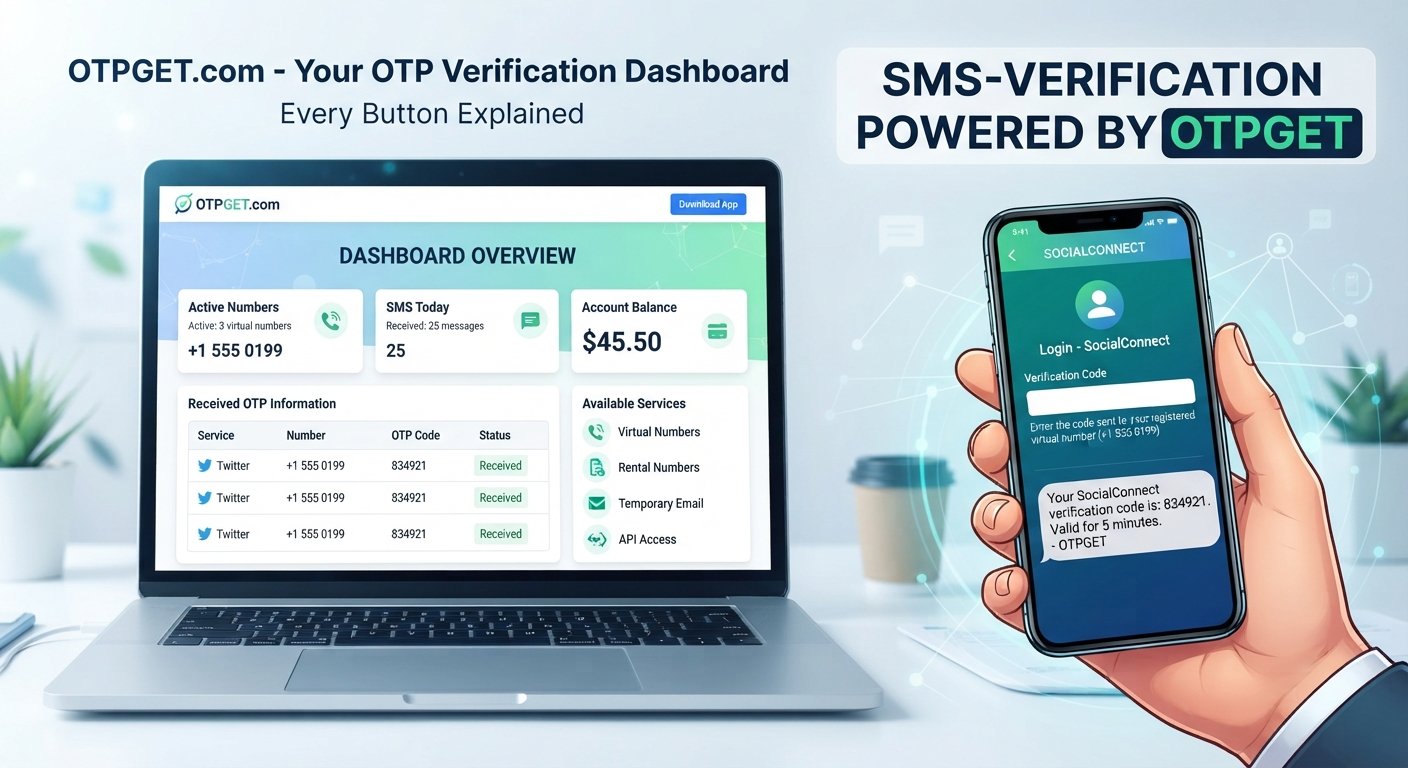
The public OTPGET dashboard displays several useful areas, including active numbers, SMS activity, account balance, received OTP information, and available services.
For someone new to an OTP platform, this organization is important. A dashboard interface should answer simple questions quickly:
- What resources are currently active?
- Has a verification message arrived?
- What account information needs attention?
- Which OTP service or number option is relevant?
- Where should you look for the received verification code?
OTPGET fits this process by putting core OTP management information in one place.
Getting Started With OTPGET
Getting started generally begins with accessing an OTPGET account and entering the user dashboard. OTPGET publicly provides account registration and login access from its main platform.
Once inside, start by getting familiar with the layout rather than immediately selecting every available option.
A useful first pass is:
- Identify the account area. Understand where your account-related information is displayed.
- Check your balance information. This helps you understand the account resources available for services that use a balance.
- Review active numbers. If you are working with virtual numbers, this area helps you see what is currently active.
- Look at SMS activity. Received messages can be relevant to an ongoing verification process.
- Review available services. OTPGET provides virtual numbers, rental numbers, temporary email, and developer API functionality.
The exact layout and controls available to an account can depend on the service being used, so users should rely on the labels shown in their own dashboard.
OTPGET Dashboard Tour: Every Button Explained
A private, complete list of every clickable control was not provided for this guide. Rather than invent button names, the following tour explains the confirmed dashboard elements and service areas shown in OTPGET's public product information.
Active Numbers
What it does:
The dashboard displays an Active Numbers area showing numbers currently associated with your OTP activity. The public dashboard view includes this as a primary account metric.
Why it matters:
When working with SMS verification, knowing which virtual numbers are active helps keep different verification sessions organized.
When to use it:
Check this area when you need to understand which numbers are currently in use before starting another verification task.
Quick tip:
Keep track of the number connected with each verification session so you do not confuse separate requests.
SMS Today
What it does:
The public OTPGET dashboard includes an SMS Today activity indicator.
Why it matters:
It provides a quick view of SMS activity associated with the account.
When to use it:
Use it as a high-level reference when monitoring recent SMS verification activity.
Quick tip:
If you are troubleshooting a verification process, compare the expected message with the activity visible in the dashboard.
Balance
What it does:
The dashboard displays an account Balance area. OTPGET's API documentation also confirms that account balance can be retrieved through its service interfaces.
Why it matters:
Balance information is relevant when services involve purchasing numbers or other account-based resources.
When to use it:
Check the balance before beginning a paid OTP or number-related operation.
Quick tip:
Review the balance first if a request does not proceed as expected.
Received OTP Information
What it does:
The public dashboard view shows received verification activity, including a service, associated number, and OTP code in the displayed example.
Why it matters:
This is the practical part of the verification workflow: locating the temporary verification code associated with an active request.
When to use it:
Check the relevant message area after the external service sends an OTP to the number being used.
Quick tip:
Always confirm that the code belongs to the correct verification session before entering it.
Our Services
What it does:
OTPGET presents service categories covering virtual phone numbers, rental numbers, temporary email, and developer API access.
Why it matters:
Different verification workflows can require different resources. A centralized service area makes those options easier to identify.
When to use it:
Use the relevant service category according to the verification task you are trying to complete.
Quick tip:
Do not choose a service simply because it is available. Start with the actual verification requirement and select the relevant option.
Understanding the OTP Verification Workflow
An OTP verification process typically follows a straightforward sequence, although the exact workflow depends on the OTPGET service being used.
A common flow looks like this:
- Start a verification request. Identify the service or account that requires verification.
- Select the relevant option. Depending on the available OTPGET functionality, this may involve selecting a country, service, number, rental option, or email resource.
- Receive the verification code. The external service sends a one-time password or temporary verification code.
- Locate the code. Review the relevant OTPGET activity or message area.
- Enter the code. Use the verification code on the service requesting it.
- Complete the verification process. Follow the external service's instructions and check the resulting status where applicable.
OTPGET's documented SMS API includes actions for finding countries and services, requesting a number, checking activation status, and changing activation status.
The important point is that a one-time password is tied to a specific verification context. Keeping the correct session, number, and code together reduces confusion during account verification.
Key OTPGET Features to Know
The broader OTPGET platform goes beyond a basic OTP dashboard. Its documented services include virtual phone numbers for SMS OTP verification, rental numbers, temporary email, and developer API access.
Virtual Numbers
Virtual numbers can be used for supported SMS verification workflows. The platform documentation describes selecting a country and service before requesting a number.
Rental Numbers
OTPGET also documents rental functionality for users who need a number for a longer period rather than a single temporary verification.
Temporary Email
The platform documents temporary email functionality for OTP-related workflows, including retrieving email verification codes and reviewing email history.
Developer API
For technical users, OTPGET provides REST API documentation covering number requests, status checks, rentals, and email OTP workflows.
Together, these options make OTPGET an OTP platform rather than simply a page for viewing an individual verification code.
Why a Clear OTP Dashboard Matters
An organized OTP management dashboard can make a noticeable difference in how easily users understand their verification process.
The value is not necessarily about having more controls. It is about knowing what each control or information area represents.
A clear dashboard can help with:
- Easier navigation: Relevant information is grouped into recognizable areas.
- Better visibility: Account, SMS, number, and verification information can be reviewed from a central interface.
- Simpler workflows: Users can follow the verification process without switching between unrelated tools.
- Reduced confusion: Clear labels make it easier to distinguish account information from active verification activity.
- More organized OTP management: Multiple verification-related tasks can be easier to track.
For beginners, this clarity can make an OTP service easier to understand. For experienced users, it can make routine verification work more structured.
Common Mistakes When Using an OTP Dashboard
Even a straightforward OTP dashboard can be misused if users rush through the verification process.
Confusing different controls
Do not click or select an option simply because its name looks familiar. Read the label and understand what the action is intended to do.
Entering the wrong verification code
A verification code belongs to a specific request. Make sure the code you copy corresponds to the correct number, service, or session.
Ignoring status information
If an OTP is still pending, repeatedly treating the request as completed can create unnecessary confusion. Check the status before taking the next step.
Mixing verification sessions
When working with multiple numbers or requests, keep each verification session separate. This is particularly important for online verification involving several accounts or services.
Sharing OTPs unnecessarily
A one-time password should be treated as sensitive verification information. Do not share an OTP with another person unless there is a legitimate, authorized reason to do so.
Ignoring platform guidance
If OTPGET or the service requesting verification provides specific instructions, follow them instead of relying on assumptions about how the verification process should work.
Tips for Using OTPGET More Effectively
You do not need to master every feature before using an OTP solution effectively. Start with the parts relevant to your task.
- Learn the layout first. Spend a few moments identifying balance, active numbers, SMS activity, and service areas.
- Understand controls before using them. A button should have a clear purpose before you select it.
- Keep verification sessions organized. Match each number and code with the correct request.
- Check status carefully. A received code and a completed verification are not necessarily the same thing.
- Protect OTPs. Treat one-time passwords as sensitive information.
- Use relevant services only. Select the OTPGET feature that matches your actual verification requirement.
- Keep technical workflows documented. If you use the API, follow the documented endpoint and response format for the specific operation.
These habits make the OTPGET interface easier to work with while reducing avoidable mistakes.
Is OTPGET Right for Your Verification Workflow?
OTPGET may be useful for users who want an organized way to handle OTP-related tasks through a centralized platform.
It can be relevant when your workflow involves:
- SMS verification
- Virtual numbers
- Rental numbers
- Temporary email verification
- Repeated OTP management
- Account verification workflows
- Developer-focused OTP tools
The main practical advantage of a dashboard-based approach is organization. Instead of treating every verification code as a separate event, you can work with the surrounding information—numbers, SMS activity, account balance, services, and status—as part of a broader verification workflow.
For developers, the documented API adds another route for integrating OTP-related operations into software.
The right choice ultimately depends on the verification requirements of your particular use case and the functionality available to your account.
Frequently Asked Questions About OTPGET
What is OTPGET?
OTPGET is a platform for OTP verification services that provides virtual numbers, rental numbers, temporary email functionality, and developer API options. Its dashboard provides a centralized view of relevant account and verification information.
What is the OTPGET dashboard?
The OTPGET dashboard is the user-facing area where key information such as active numbers, SMS activity, balance, and received OTP information can be viewed.
How does OTPGET help with OTP verification?
OTPGET provides resources such as virtual numbers and temporary email that can be used in supported verification workflows. The dashboard helps users keep related verification information organized.
What can I do from the OTPGET dashboard?
The publicly documented dashboard shows areas for active numbers, SMS activity, balance, received OTP information, and available services. Exact controls can vary depending on the account and service being used.
Is the OTPGET dashboard easy to use?
The dashboard is organized around straightforward information categories such as numbers, SMS activity, balance, and services. Users should still take time to understand each control before using it.
What is an OTP verification code?
An OTP, or one-time password, is a temporary verification code used to confirm an action such as account verification or sign-in. It is normally intended for a specific verification session.
How should I handle OTPs securely?
Treat OTPs as sensitive verification information. Do not share them unnecessarily, confirm that a code belongs to the correct verification request, and follow the security guidance of both OTPGET and the service requesting the code.
Final Thoughts
Understanding an OTP dashboard becomes much easier when each area has a clear purpose.
With OTPGET, users can work from a centralized interface that brings together important information such as active numbers, SMS activity, account balance, received verification codes, and available OTP services.
The key is not to memorize every control. Instead, learn what each dashboard area represents, match the right resource to the verification process, and keep each OTP session organized.
Whether you need a simple OTP workflow or are exploring broader OTP management and API capabilities, becoming familiar with the OTPGET dashboard is a practical first step. Once the interface makes sense, the verification process becomes easier to follow, monitor, and manage.