Meetup Login Without Phone Number: OTPGET Verification Guide
Meetup Login Without Phone Number: OTPGET Verification Guide
Trying to complete a Meetup login without a phone number can be frustrating when a particular verification flow asks for an SMS code. You may simply prefer not to share your personal number with another online service, or you may want to keep a separate number for online verification.
There is an important distinction, though: avoiding your personal phone number is not the same as bypassing authentication.
Meetup's current help resources describe several legitimate ways to access an account, including standard login credentials and supported sign-in options such as Google, Facebook, or Apple. Meetup also says its web logins use security measures such as CAPTCHA and strong passwords.
So, if a particular account or verification flow requests a phone number, the practical question is not how to defeat that requirement. Instead, it is whether you can use an alternative phone number for verification that you are authorized to use and that the service accepts.
For users in that situation, OTPGET can be a practical option to consider.
Can You Get a Meetup Login Without Your Personal Phone Number?
Yes, potentially — but the exact process depends on the login or verification method presented to you.
If Meetup allows you to sign in with your existing credentials or a supported third-party account, you may not need to use a phone number for that particular login. Meetup's help documentation also provides password-reset and account-recovery options based on email, while accounts originally created through Google, Facebook, or Apple can use those sign-in methods.
The situation is different if Meetup presents a phone-based verification step.
In that case, there are three different concepts to keep separate:
- Avoiding your personal number: You use another legitimate number rather than your primary mobile number.
- Using an alternative number: A secondary or virtual number is used for an eligible verification process.
- Bypassing authentication: Attempting to defeat, circumvent, or interfere with a security requirement.
The first two can be legitimate depending on the service's rules. The third is not an appropriate approach.
Only use a number and verification code for an account you own or are authorized to access.
Legitimate Ways to Handle Meetup Verification
Before looking for an OTP service, check whether you actually need one.
1. Use your existing Meetup credentials
If you already have access to your Meetup account email and password, use the normal Meetup account login process. If you forgot the password, Meetup provides a password-reset flow through the login page.
2. Use a supported social sign-in option
If your Meetup account was created through Google, Facebook, or Apple, Meetup provides corresponding sign-in options. This can be useful when your goal is simply to complete a Meetup sign in without introducing another phone number.
3. Use an alternative number when phone verification is requested
If the relevant verification flow specifically requires an SMS and accepts a virtual or secondary number, an OTP verification service may provide an alternative to your personal SIM.
This is where OTPGET becomes relevant.
How OTPGET Can Help With Meetup Verification
OTPGET provides virtual numbers and OTP-related services designed to receive verification messages through supported workflows. Its published documentation describes options for obtaining numbers, selecting countries and services, and checking for incoming SMS verification codes.
The key phrase is “when supported.”
A virtual number is not a guaranteed solution for every website or verification system. Some platforms may reject certain number types, countries, carriers, or previously used numbers. Meetup's requirements can also vary by account, region, login flow, and available verification method.
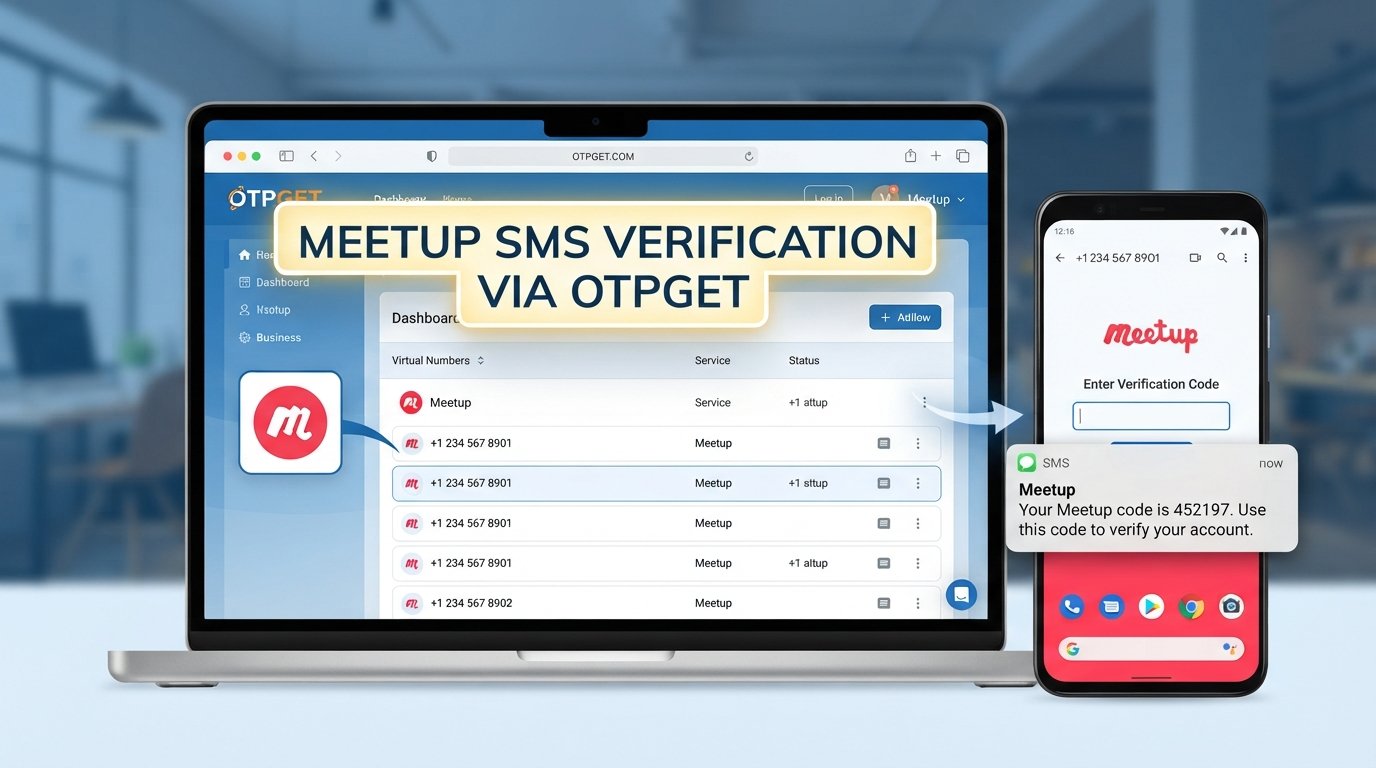
If the relevant Meetup process accepts the selected OTPGET number, the general process looks like this:
- Visit OTPGET and review the available verification options.
- Select a number appropriate for your legitimate verification purpose.
- Enter that number into the relevant Meetup verification field if the service permits it.
- Request the Meetup verification code through the normal Meetup interface.
- Monitor the supported OTPGET interface for the incoming verification SMS.
- Retrieve the Meetup OTP when it arrives.
- Enter the code into Meetup's verification field.
- Continue the standard account verification process if the number is accepted.
OTPGET's documentation describes SMS number ordering and status checking, while its broader service information also describes virtual and rental numbers.
There is no guarantee that every number will work with Meetup. If a selected number is rejected or the SMS does not arrive, follow Meetup's normal support and verification procedures rather than attempting to circumvent the security check.
Personal Number vs. OTP Verification Options
The right approach depends on why you need verification and what the service accepts.
| Method | Personal Number Needed | Privacy Consideration | Convenience | Best For |
|---|---|---|---|---|
| Personal mobile number | Yes | Your primary number is used | Familiar and straightforward | Users comfortable using their main number |
| Secondary phone number | No, if separate from primary | Keeps your main number separate | Requires access to another number | Regular users who maintain a second line |
| OTP verification service | Usually no personal number for the verification step | Separates the primary number from the service | Depends on availability and acceptance | Legitimate online verification needs |
| OTPGET | Not necessarily | Provides an alternative number where supported | Number and SMS availability can vary | Users seeking an OTP receiving service for supported verification |
This table should not be interpreted as a promise that a particular number will be accepted by Meetup. Always check the requirements shown during your actual verification process.
Why Use an Alternative Number for Verification?
There are several reasonable reasons someone may prefer not to use their main mobile number.
Privacy separation: You may want to keep your personal contact information separate from online accounts and services.
Convenience: A dedicated verification number can be useful when you have a legitimate need to receive SMS codes without relying on your primary SIM.
Online verification: If you regularly encounter services that use SMS OTP, an appropriate OTP verification service can provide a separate workflow for eligible verification tasks.
Reduced exposure of your primary number: Using a separate number can help avoid unnecessarily distributing your main number across multiple online services.
However, an alternative number should not be treated as a way to hide ownership, impersonate another person, or bypass a platform's security requirements.
How to Use OTPGET for Meetup Verification
If your Meetup verification screen requests an SMS and permits the type of number you have selected, beginners can approach the process step by step.
Step 1: Confirm what Meetup is asking for
Look carefully at the login or account verification screen. Make sure you are dealing with a genuine Meetup page and understand whether it is requesting an email, password, phone number, or login verification code.
Step 2: Check OTPGET availability
Review the current OTPGET options and choose a number or service appropriate to your legitimate use case. Availability can change, so do not assume that every country or service is always available.
Step 3: Enter the number normally
If Meetup accepts that type of number, enter it into the requested phone number for verification field. Do not attempt to manipulate the form or circumvent any restrictions.
Step 4: Wait for the verification SMS
Request the code through Meetup's normal interface. Then check the supported OTPGET interface for the incoming verification SMS.
Step 5: Enter the OTP
When the legitimate code arrives, enter it into the corresponding verification field on Meetup.
Step 6: Finish the normal account process
If the number is accepted and the code is valid, continue with the standard verification process.
Remember:
- Verify only accounts you own or are authorized to access.
- Check that the selected number is supported before relying on it.
- Never share an OTP with another person.
- Do not use verification services to impersonate someone else.
- Availability and acceptance can vary between services and verification attempts.
What If the Meetup Verification Code Does Not Arrive?
An SMS delay does not necessarily mean something is wrong with your account. Work through the basic troubleshooting steps first.
Check the number
Confirm that the number was copied or entered correctly. A single incorrect digit can prevent the message from reaching the intended destination.
Wait briefly
SMS delivery can take some time. Avoid repeatedly requesting codes in rapid succession because the verification system may impose limits or invalidate older codes.
Request another code
If Meetup provides a resend option, use the normal resend function. Follow the instructions displayed by Meetup rather than trying alternative methods to defeat the verification process.
Check number availability
If you are using OTPGET, confirm that the selected number is still active and capable of receiving the relevant message.
Try another supported option
If Meetup offers another legitimate login or recovery method, such as email or an applicable social sign-in option, consider using it. Meetup's support documentation lists several account-access and recovery paths.
Contact Meetup Support
If you still cannot access your account, use Meetup's official support process for login and account-access problems. Meetup provides a support category specifically for these issues.
Frequently Asked Questions
Can I log in to Meetup without my personal phone number?
Possibly. Meetup provides several account-access methods, and a phone number is not necessarily part of every login flow. If your particular verification process requests SMS, you may be able to use an alternative number if Meetup accepts it. The available options depend on the account and verification flow.
Does Meetup always require phone verification?
No blanket assumption should be made that every Meetup login requires phone verification. Meetup's current help resources describe email/password access and supported third-party sign-in options, while additional security requirements can vary. If your specific account flow requests a phone number, follow the requirement shown on the legitimate Meetup interface.
How can I receive a Meetup verification code?
If Meetup sends a code by SMS, it must be sent to a number accepted by the verification system. You can use your personal number, a legitimate secondary number, or an eligible virtual number where supported. An online SMS verification service such as OTPGET may be an option when the relevant service accepts the selected number.
Can I use an alternative number for Meetup verification?
You may be able to use an alternative number if Meetup accepts that number type for the particular verification flow. A virtual number is not automatically accepted by every platform. Check the requirements before starting and never use an alternative number to impersonate another person or gain unauthorized access.
What is OTPGET?
OTPGET is a service offering virtual numbers and OTP-related functionality. Its published documentation describes SMS OTP number ordering, country and service selection, incoming-code status checking, rental numbers, and related developer functionality.
How does OTPGET work for OTP verification?
At a general level, you select an available number and appropriate verification service, use the number where it is permitted, and monitor OTPGET for the incoming SMS. Once the code arrives, you enter it into the relevant verification field. Availability and acceptance depend on the third-party service.
What should I do if my Meetup OTP does not arrive?
First, verify the number, wait briefly, and use the normal resend option if available. If you are using OTPGET, check whether the selected number remains available for the intended verification. If the issue continues, use another supported Meetup login or recovery option or contact Meetup Support.
Is using an OTP verification service safe?
An OTP service can be useful for legitimate verification purposes, but users should understand the service's terms, number availability, and the rules of the platform being verified. Never share verification codes, use a service to impersonate someone, or treat an OTP service as a method for bypassing authentication.
Final Thoughts
Finding a Meetup login without a phone number does not necessarily mean finding a way around security. In many cases, you can use an existing password, email-based recovery, or a supported social sign-in method. If a particular verification flow requires SMS, the practical alternative may be a separate number rather than your personal mobile number.
OTPGET can be considered when you need an alternative number for legitimate Meetup OTP verification, provided the relevant Meetup process accepts that type of number. Its published documentation supports SMS OTP workflows, but availability and third-party acceptance can vary.
The safest approach is straightforward: use only legitimate account-access methods, verify accounts you are authorized to access, and follow the requirements shown by Meetup.
If you need a separate number for an eligible verification purpose, explore the current options available through OTPGET and confirm compatibility before proceeding.