OTPGet Login Guide: Step-by-Step Sign In & Account Access Help
OTPGet Login Guide – Step-by-Step Sign In Help
Introduction
Trying to complete an OTPGet login and not sure what to do next? Whether you are signing in for the first time, returning to your account, or dealing with a verification prompt, knowing the correct sequence can make account access much simpler.
OTPGet provides an online platform centered on virtual numbers, OTP verification, rental numbers, temporary email services, and related tools. Its login page currently provides email-and-password sign-in, an option to sign in with Google, password-reset access, and an additional email verification step when two-factor authentication is requested.
This OTPGet login guide walks through the sign-in process in straightforward steps. It also covers common login issues, verification problems, browser troubleshooting, and sensible account-security practices without assuming that every user will see exactly the same screen.
What Is OTPGet?
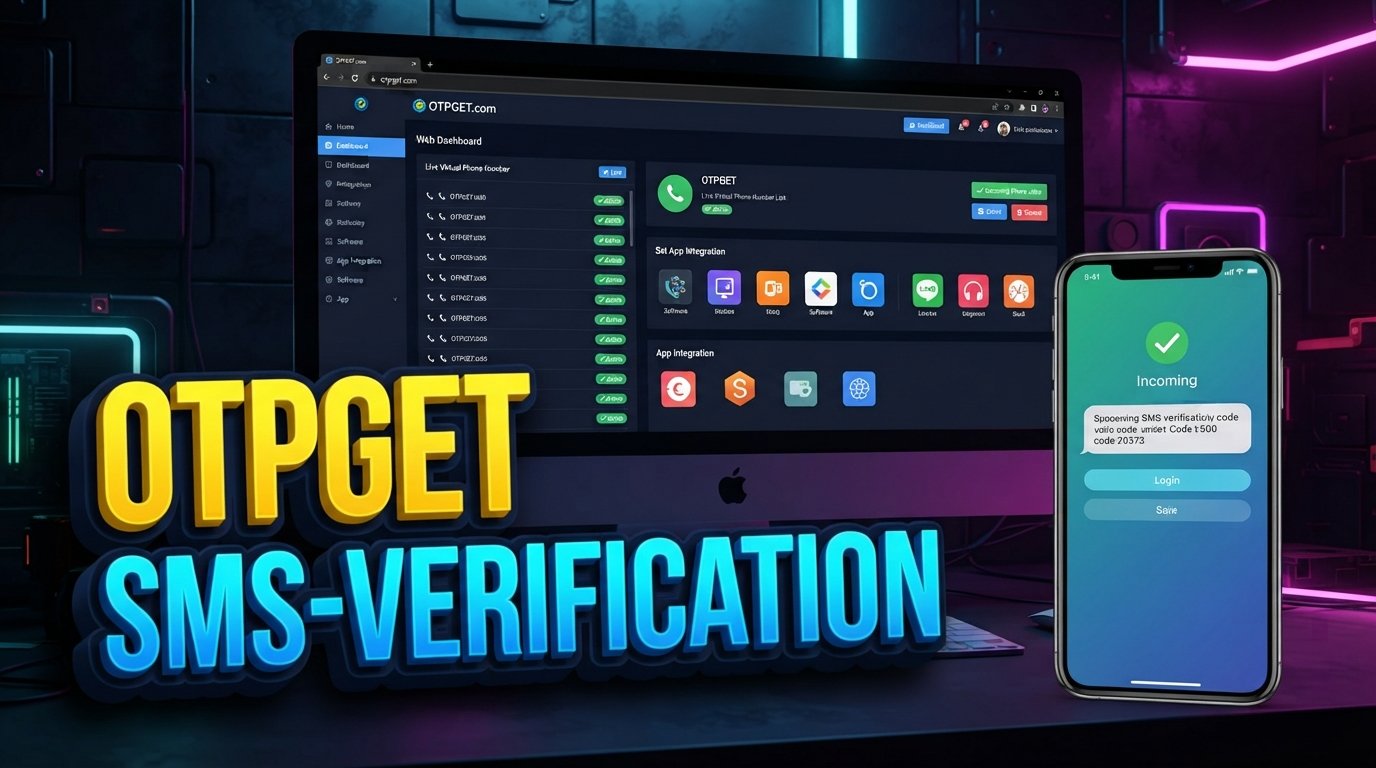
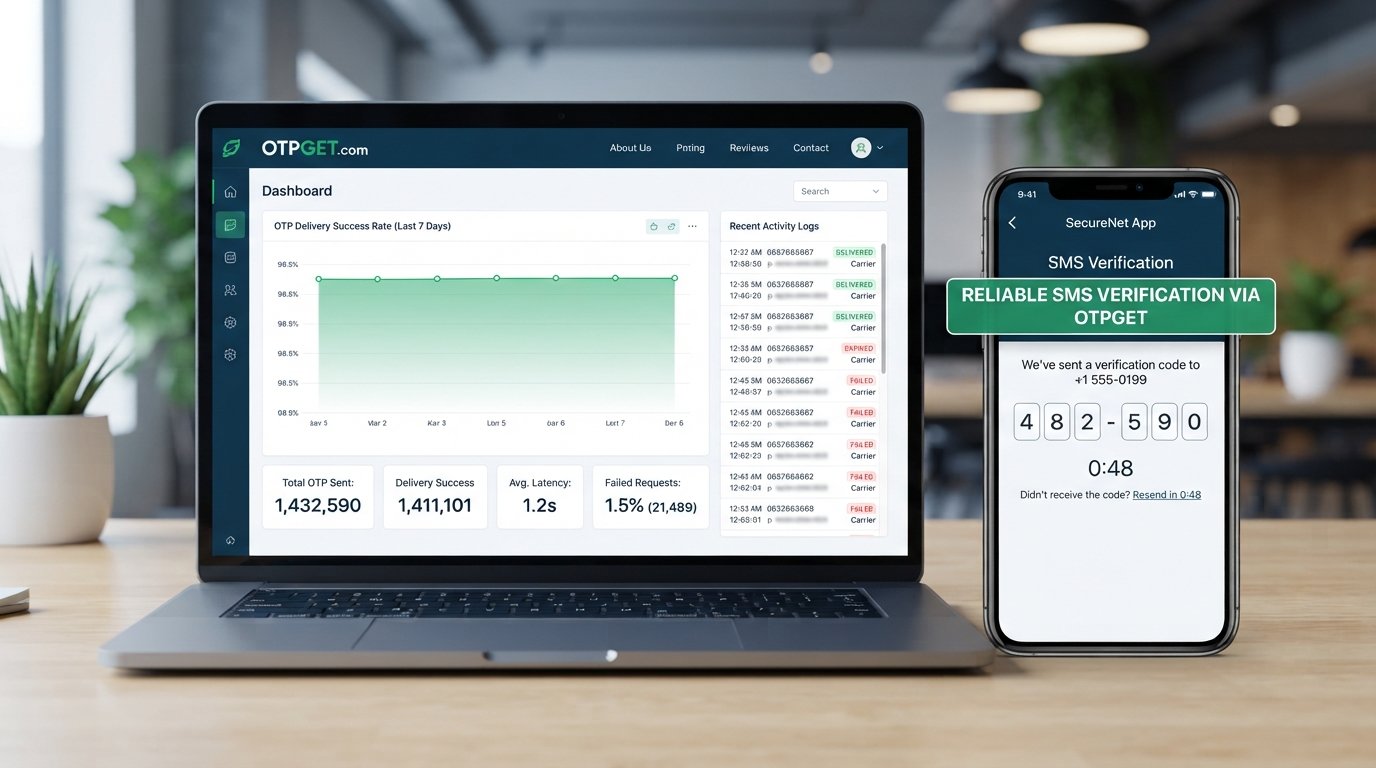
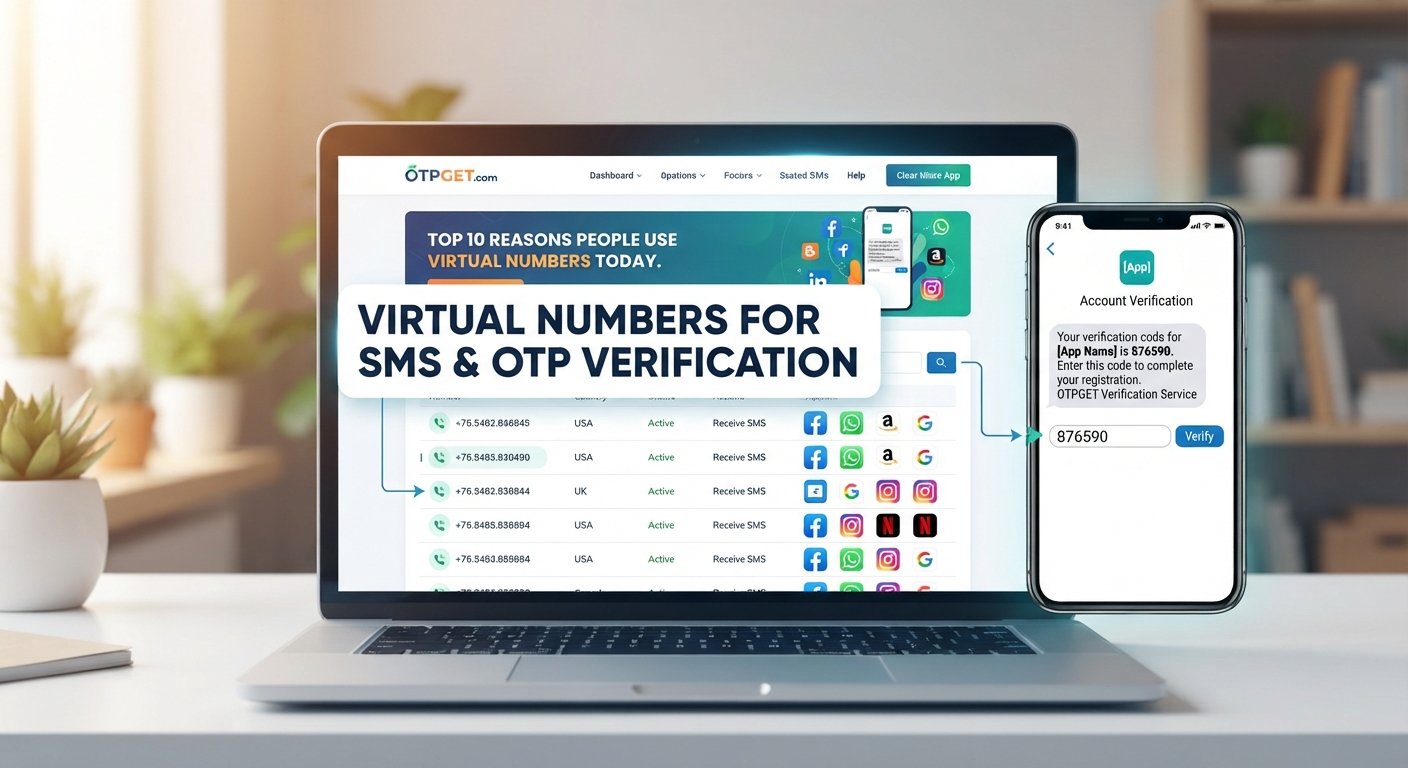
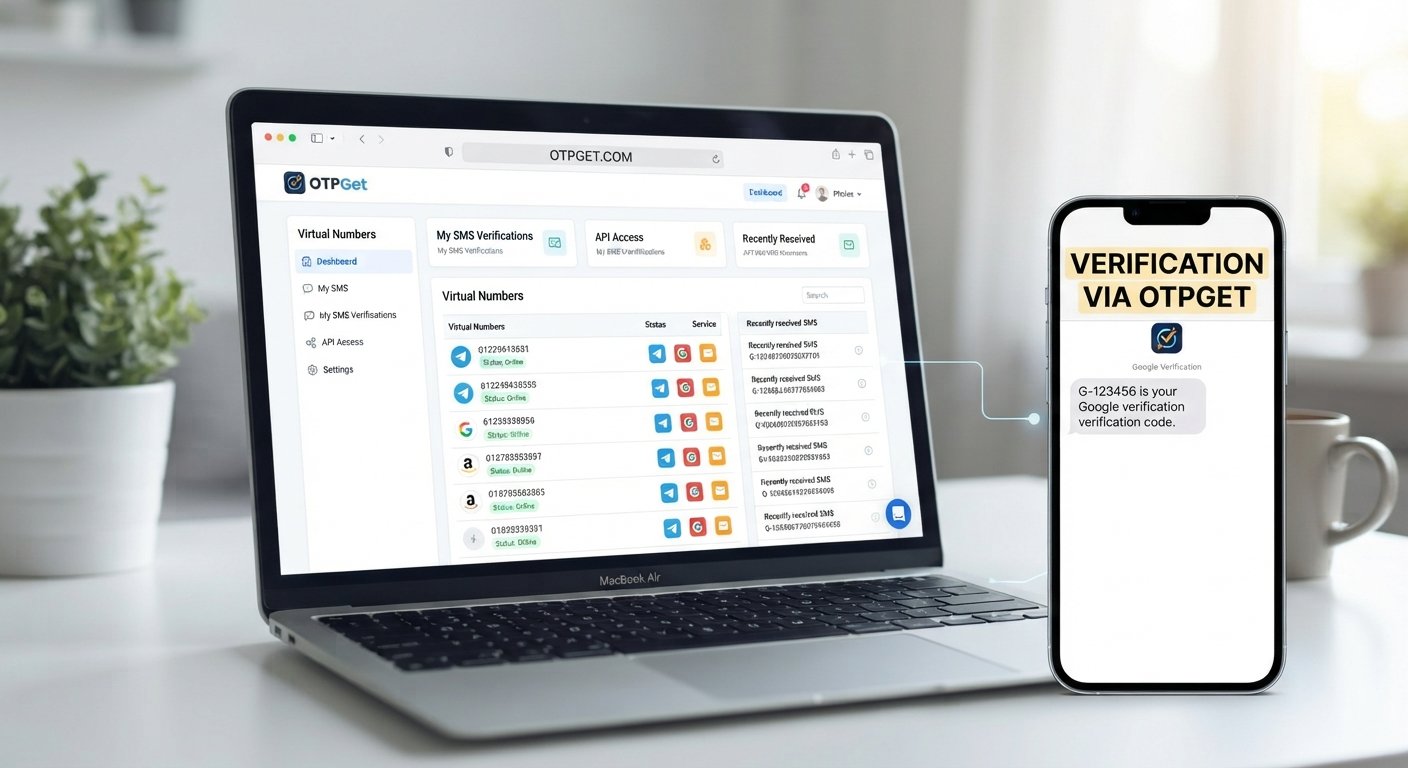
OTPGet is an online service focused on OTP verification and related virtual-number services. According to its website, the platform offers virtual phone numbers, rental numbers, temporary email services, and developer APIs for OTP-related use cases.
For a registered user, accessing the account login area can be the starting point for managing the services associated with the platform. The exact options available after signing in may depend on the account and the service being used.
If your goal is simply to reach your account, the safest starting point is the official OTPGet website rather than a third-party page or an unfamiliar login link.
OTPGet Login – Step-by-Step Sign In Guide
The following OTPGet login steps reflect the login fields and verification options currently presented on the official login page.
Step 1: Open the OTPGet Login Page
Start by navigating to the official OTPGet website and selecting its login option. The official login page is available at:
Before entering any account information, check the address carefully. Avoid entering credentials on pages reached through suspicious messages, unexpected advertisements, or unfamiliar domains.
Step 2: Enter Your Login Details
The OTPGet sign-in page currently asks for an email address and password. Enter the credentials associated with your account carefully.
If your browser automatically fills the fields, take a moment to confirm that the saved information belongs to the correct account. A simple typo, extra character, or incorrect saved password can prevent a successful sign-in.
Step 3: Complete Any Verification
After entering your credentials, you may encounter an additional verification step. The current OTPGet login page describes a two-factor authentication process in which a six-digit code can be sent to the account email address.
If this appears, check the relevant email inbox and enter the verification code exactly as requested. If the code does not arrive, avoid repeatedly entering random codes and instead use the available resend option when appropriate.
Step 4: Select Sign In
Once the required login information has been entered, select the sign-in option shown on the page.
OTPGet also currently displays a Google sign-in option, so users whose accounts support that method may see it as an alternative to entering an email address and password.
Step 5: Confirm Account Access
After signing in, check that you have reached the expected account area rather than returning to the login screen.
If an account dashboard or service area appears normally, your OTPGet account login has been completed. If you are sent back to the sign-in page or shown an error, move through the troubleshooting steps below instead of repeatedly submitting the same credentials.
How to Sign In to OTPGet Without Confusion
If you are unfamiliar with the OTPGet sign in process, keep the sequence simple:
-
Begin at the official OTPGet login page.
-
Have your account email and password available.
-
Enter the information carefully.
-
Complete additional verification if requested.
-
Check your email if a verification code is required.
-
Confirm that the account area loads after authentication.
The current login page specifically lists email, password, Google sign-in, password reset, and email-based two-factor verification options.
If something does not behave as expected, first determine whether the problem is related to your credentials, verification code, browser, or internet connection. Identifying the likely cause is usually more useful than repeatedly attempting to sign in.
Common OTPGet Login Problems and How to Fix Them
Login issues can have several causes. The following OTPGet login troubleshooting suggestions cover common possibilities without assuming that a particular error is occurring on the platform.
Incorrect Login Details
If the email or password is rejected, carefully re-enter both. Check for typing mistakes, accidental spaces, or an incorrect email account.
If you use a password manager, confirm that its saved credentials are current.
Forgotten Credentials
If you cannot remember your password, look for the password-recovery option on the official login page. OTPGet's current login screen includes a Forgot Password link leading to a reset option.
Use the recovery process provided by the platform rather than relying on unofficial password-reset links.
OTP or Verification Problems
If an OTP or verification code is required but does not arrive, check the email address and review the relevant inbox folders.
The current OTPGet login page includes a resend option for its email verification code.
Also remember that verification codes can expire or become invalid after another code is requested. Use the newest valid code rather than repeatedly trying an older one.
Browser or Cache Issues
If the login page loads incorrectly, try refreshing it. You can also try a current browser or a private browsing window.
If the problem disappears in another browser, clearing relevant cached site data may help.
Page Loading Problems
A page that fails to load may be affected by a temporary browser, network, or service-side issue. Check whether other websites load normally before assuming your account is the problem.
Internet Connection Problems
An unstable connection can interrupt page requests or prevent verification screens from loading correctly. Try reconnecting to your network and then return to the official login page.
Temporary Access Issues
If your credentials appear correct but access still fails, avoid making repeated attempts indefinitely. Check for an account message or use the available official recovery or support route.
OTPGet Login Tips for a Smoother Sign-In
A few simple habits can make your OTPGet account access process easier:
-
Double-check your credentials before submitting them.
-
Use the correct login page rather than an unfamiliar link.
-
Keep access to your account email if verification is required.
-
Use the latest verification code when multiple codes have been requested.
-
Avoid repeated incorrect attempts, especially when you are unsure of the password.
-
Check your internet connection if the page or verification step is not responding.
-
Keep your browser updated to reduce compatibility problems.
-
Protect your password and do not share it with other people.
-
Never disclose verification codes to someone who contacts you unexpectedly.
-
Watch for suspicious links that imitate a familiar login page.
Good login security is not only about completing the sign-in. It is also about protecting the credentials and verification information that provide access to the account.
What to Do If You Cannot Access Your OTPGet Account
If you are still unable to sign in, work through the problem systematically.
1. Recheck the login information.
Confirm that you are using the correct email address and password. Look for simple typing or autofill errors.
2. Use the relevant recovery option.
If you have forgotten your password, use the password-help or reset option provided on the official OTPGet login page. The current page includes a dedicated reset link.
3. Complete verification carefully.
If OTPGet asks for an email verification code, enter the current code accurately. If necessary, use the available resend function.
4. Check your browser and connection.
Refresh the page, try another current browser, or test your connection if the login screen is not working normally.
5. Look for official account-support options.
If normal recovery does not resolve the issue, use account-support or recovery options provided through the official OTPGet website. Do not rely on unverified contact details found on unrelated websites.
6. Protect your credentials.
Never give your password or verification code to another person simply because they claim to be helping with your account.
This sequence gives you a practical OTPGet account access help path without requiring you to guess at unsupported recovery procedures.
Why OTPGet Login Help Can Make Account Access Easier
A clear login guide is useful because sign-in problems are not always caused by the account itself. A forgotten password, an expired verification code, a browser issue, or an incorrect login page can all create confusion.
Using OTPGET as the central reference point for your account-access process helps keep the steps organized: start with the official login page, enter the correct credentials, complete verification when required, and use the platform's available recovery options when something goes wrong.
The official OTPGet login page also makes several common account-access routes visible, including password recovery and Google sign-in, while its current two-factor flow explains when an email verification code is required.
The key is to follow the information actually presented for your account rather than assuming every user will see identical options.
Frequently Asked Questions About OTPGet Login
How do I log in to OTPGet?
To complete an OTPGet login, open the official login page, enter the email address and password associated with your account, and select the sign-in option. If additional verification is requested, complete it using the instructions shown on screen. The current login page also provides a Google sign-in option.
Where can I find the OTPGet login page?
The official OTPGet login page is available at the /login address on the OTPGet domain. It currently provides email and password fields along with sign-in, password-reset, and account-registration options. Always check that you are on the genuine OTPGet domain before entering account credentials.
What should I do if my OTPGet login does not work?
Start by checking your email address and password for errors. If those appear correct, consider whether a verification step, browser problem, or connection issue is preventing access. You can also use the available password-reset or recovery option if appropriate. Avoid entering credentials repeatedly when you are unsure which information is correct.
What if I forget my OTPGet login details?
If you forget your password, use the password-recovery option shown on the official OTPGet login page. The current sign-in screen includes a Forgot Password link. Follow the instructions provided by OTPGet rather than using third-party recovery services or links.
Why am I not receiving an OTP or verification code?
If a verification code is expected, first check that you are monitoring the correct email account and that the message has not been filtered into another folder. Wait briefly and use the available resend option if appropriate. If an older code has already been replaced, use the newest code provided by the service.
Can I access OTPGet from a mobile device?
The OTPGet website can be opened through a mobile web browser, but the exact appearance and available options may vary by device and browser. If the sign-in page does not display correctly, try an updated mobile browser or another supported browser and make sure your internet connection is stable.
How can I keep my OTPGet account secure?
Use a strong, unique password and keep it private. Do not share verification codes with other people, even if someone claims to represent a support service. Before signing in, check the website address and avoid entering credentials through suspicious links. If your account offers additional verification, follow the security instructions provided by the platform.
What should I do if I still cannot sign in?
If normal login and password recovery do not resolve the problem, check the official OTPGet website for the appropriate account-support or recovery route. Keep your account information private while seeking help, and do not provide your password or verification code to an unverified person.
Final Thoughts on OTPGet Login
Completing an OTPGet login should generally begin with the official login page, followed by your account credentials and any verification requested during authentication. If access fails, work through the basics first: check your details, review verification messages, troubleshoot your browser and connection, and use the official recovery options available to you.
OTPGET is the central resource discussed in this guide because understanding its sign-in process can make account access less confusing. When a straightforward login attempt does not work, careful troubleshooting is preferable to guessing at procedures or using unofficial links.
For the safest approach, always follow the instructions displayed on the official OTPGet site and keep passwords and verification codes private.