What to Do If You Can't Sign In to OTPGET: Easy Fixes
What to Do If You Can't Sign In to OTPGet
Being unable to sign in to OTPGET can be frustrating, especially when you need access to an OTP-related service and expect the process to be quick. Before assuming there is a serious account problem, take a moment and work through a few basic checks.
Sign-in issues are often caused by something simple: incorrect login details, an expired verification code, an unstable internet connection, a browser problem, or a temporary access issue. The key is to troubleshoot one possible cause at a time instead of repeatedly trying the same action.
This guide walks you through practical steps for diagnosing OTPGET login problems, getting through verification, and restoring access as smoothly as possible.
Why You Might Not Be Able to Sign In to OTPGET
There are several reasons an OTPGET sign-in may not work as expected. Some are related to the information you enter, while others can involve your browser, device, network, or the service itself.
Common causes include:
- Incorrect username, email address, or other login information
- A password entered incorrectly
- An expired or incorrect OTP
- A verification code that has been delayed
- Using an older code after requesting a newer one
- An unstable internet connection
- Cached browser data interfering with the session
- A temporary browser or device issue
- Repeated unsuccessful login or verification attempts
- A temporary service interruption
- An account or security check that requires additional attention
The fastest approach is to start with the simplest possibilities. Check your login information first, then move through the technical troubleshooting steps.
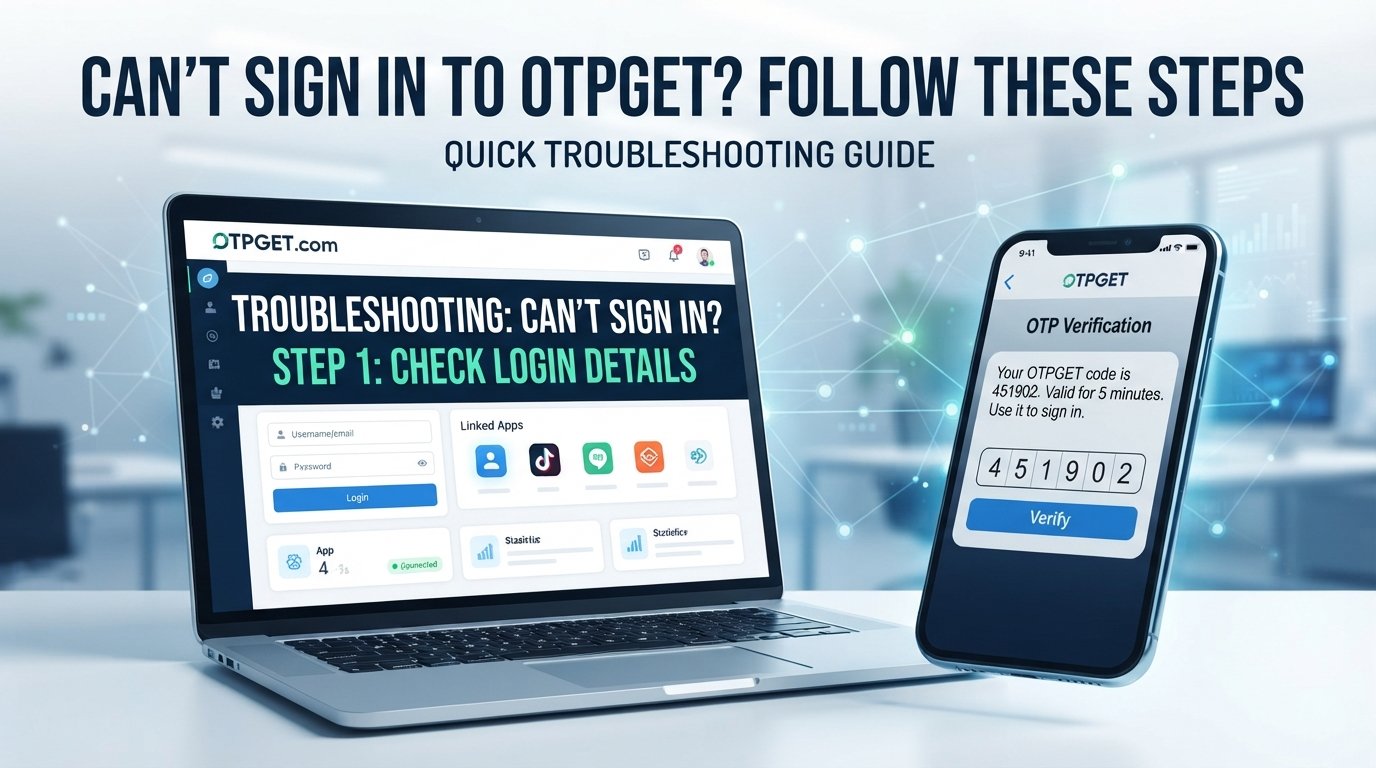
Check Your OTPGET Login Details
Start by carefully reviewing the information you are entering.
A small typing mistake can prevent an otherwise valid account from being recognized. Check for accidental spaces, incorrect characters, capitalization differences where relevant, and similar-looking characters.
If you use a password manager or saved credentials, make sure the stored information is current rather than relying on an outdated saved entry.
Also avoid repeatedly guessing your password. If you are unsure about your credentials, use any official account-help or recovery options available through OTPGET rather than continuing to enter random combinations.
A good first check is simple:
- Re-enter your login information carefully.
- Confirm that there are no accidental spaces.
- Make sure you are using the intended account.
- Check whether your saved credentials may be outdated.
- If available, use the appropriate account-recovery option.
Taking a few seconds to verify your information can save you from unnecessary troubleshooting later.
Check Your OTP or Verification Code
If you can enter your login information but cannot complete verification, the problem may be related to the OTP itself.
An OTP is generally intended for a specific verification attempt and may become invalid after a limited period. If you wait too long before entering it, the code may no longer work.
You should also be careful when requesting multiple codes. If you request another verification code, an earlier code may no longer be the one you should enter.
When dealing with an OTPGET verification problem:
- Check that you entered the code correctly.
- Use the newest valid code you received.
- Avoid relying on an older code after requesting another one.
- Give a delayed code a little time to arrive.
- Do not repeatedly request new codes without checking whether the previous one has arrived.
- If a code has clearly expired, request a fresh one when the available login process allows it.
If the OTP is not received, check the relevant delivery channel and make sure there are no connection or notification issues preventing you from seeing the message.
Check Your Internet Connection
A login process can fail even when your credentials are correct if the connection between your device and the service is unstable.
Slow or interrupted internet access can affect page loading, login requests, and verification steps. You may see a page that does not finish loading, a verification request that appears stuck, or an error after submitting your information.
Try the following:
- Check whether other websites or online services are loading normally.
- Switch to a more stable connection if one is available.
- Refresh the page after confirming your connection is working.
- Avoid repeatedly submitting the login form while the connection is unstable.
If everything starts working after your connection improves, the original OTPGET access problem may have been caused by connectivity rather than your account.
Clear Browser Cache and Cookies
Your browser stores temporary information to make websites load more efficiently. Occasionally, outdated cached data or cookies can interfere with a fresh sign-in session.
If your OTPGET login keeps behaving unexpectedly, starting with a clean browser session can help determine whether stored browser information is involved.
You can try clearing relevant cached data and cookies, then reopen the sign-in page and attempt the process again.
Another simple option is to open a fresh private or incognito browsing session, if your browser provides one. This can help you test the login without relying on the same stored browsing session.
Remember that clearing cookies may sign you out of other websites, so only clear data when you are comfortable doing so.
Try Another Browser or Device
If OTPGET still does not let you sign in, test the process in another browser or, when practical, on another device.
This is useful because it helps identify where the problem is occurring.
For example, if the sign-in works normally in another browser, the original browser may have a cached-data, cookie, extension, or configuration issue. If the problem occurs across multiple browsers and devices, the issue may not be limited to your original setup.
You do not need to change everything at once. Try one alternative at a time so you can identify what makes a difference.
Avoid Repeated Failed Login Attempts
When a sign-in fails, it is tempting to keep trying immediately. However, repeatedly entering uncertain credentials or requesting multiple verification codes can make the situation harder to troubleshoot.
You may lose track of which password you tried or which OTP is the newest. If verification messages arrive with delays, you could also end up entering an older code.
Instead, slow down.
Confirm your login information, request a new verification code when appropriate, and use the most recent valid information. If the service appears temporarily unresponsive, give it a short pause before trying again.
A controlled troubleshooting process is usually more useful than making many rapid attempts.
What to Do If OTPGET Still Won't Let You Sign In
If the basic checks have not solved the problem, work through the process systematically.
1. Confirm your login details
Review the credentials you are entering and make sure you are using the correct account information.
2. Request a fresh verification code
If the available login process allows you to request another OTP, use a fresh code rather than continuing to enter an expired one.
3. Use the newest code
If several codes have been requested, carefully identify the most recent one and enter that code.
4. Check your internet connection
Make sure your connection is stable enough to load the login and verification process properly.
5. Start a fresh browser session
Refresh the page or try a clean/private session to rule out temporary browser data.
6. Try another browser or device
Testing another environment can help determine whether the problem is specific to your current setup.
7. Wait briefly and try again
If there may be a temporary service or connection issue, repeatedly attempting to sign in may not help. Pause and try again later.
8. Use available official help options
If the problem continues, check the account or support options made available through the official OTPGET service. Follow the relevant instructions rather than relying on unverified third-party advice.
This sequence gives you a practical way to isolate common OTPGET login issues without making unnecessary changes to your account or device.
Why OTPGET Can Be the Solution
When your task depends on OTP functionality, having access to a service focused on OTP-related needs can make the overall verification process more straightforward.
OTPGET is the central service discussed here for users who need access to OTP-related functionality. Instead of treating every verification problem as an unexplained technical failure, users can approach access issues methodically and determine whether the problem comes from their credentials, verification step, connection, browser, device, or temporary service availability.
The important point is to separate access troubleshooting from the underlying OTP task. If you cannot sign in, first restore access using the basic checks above. Once you can access OTPGET, you can continue with the OTP-related functionality you need.
Keeping your login information accurate, paying attention to verification-code timing, and maintaining a stable browsing environment can also make future sign-in attempts easier to manage.
Quick OTPGET Sign-In Troubleshooting Checklist
Before looking for more complicated explanations, run through this checklist:
- Confirm your OTPGET login information.
- Check for typing mistakes or accidental spaces.
- Make sure you are using the intended account.
- Check whether your OTP or verification code has expired.
- Use the newest verification code if multiple codes were requested.
- Check your internet connection.
- Refresh the sign-in page.
- Try a fresh or private browser session.
- Clear relevant browser cache and cookies if necessary.
- Test another browser.
- Test another device if available.
- Avoid repeated failed attempts.
- Wait briefly if there may be a temporary issue.
- Check the available official OTPGET account-help or support options if the problem persists.
Final Thoughts
A can't sign in to OTPGET situation does not necessarily mean there is a serious account problem. Start with the basics: verify your login details, check your OTP, make sure your connection is stable, and test a fresh browser session. If necessary, move on to another browser or device and give temporary issues some time to clear.
The most important thing is to troubleshoot methodically rather than repeatedly submitting uncertain information.
Once access is restored, OTPGET can serve as the practical place to continue with your OTP-related needs. And if another sign-in problem occurs, the same troubleshooting sequence provides a straightforward starting point for identifying and resolving it.