29. Forgot OTPGet Password? Recovery Steps to Regain Access Now
Forgot OTPGet Password? Recovery Steps to Regain Access Now
Forgetting a password can turn a simple login into a frustrating roadblock. You know the account is yours, but the password you normally use suddenly will not come to mind. If this has happened with OTPGET, there is no need to keep guessing credentials and making the situation more complicated.
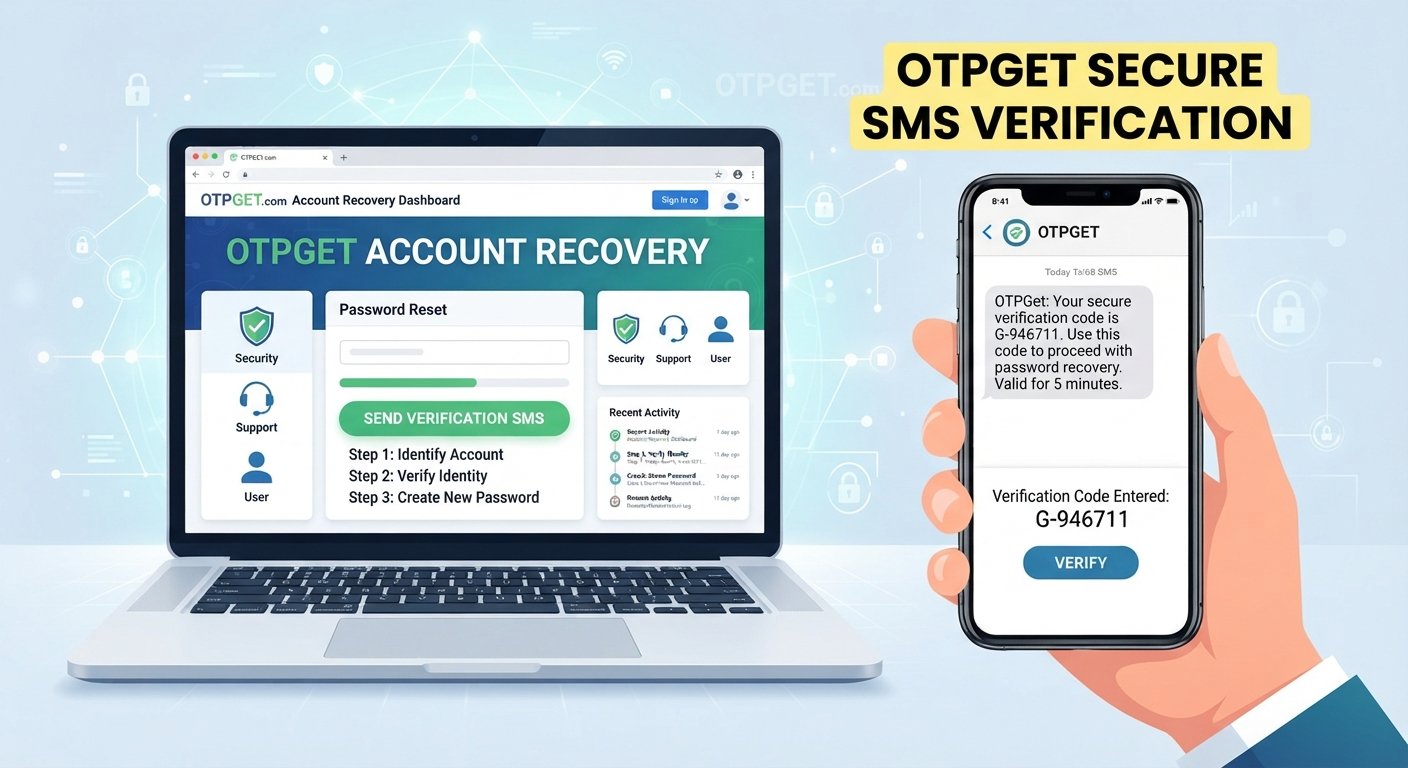
The practical approach is to follow the available OTPGET password recovery process carefully. In most account-recovery situations, that means starting from the OTPGET login page, finding the appropriate recovery option, verifying the account through an available method, and creating a new password.
The exact screens or options presented by OTPGET may vary, so always follow the instructions displayed through the official OTPGET service. The key is to work through the recovery process systematically rather than repeatedly trying old passwords.
Quick Answer
If you forgot your OTPGET password, start at the official OTPGET login page and look for the password reset or account recovery option. Enter the account information requested, complete OTP verification or another available verification step, and create a new password when prompted.
After resetting the password, return to OTPGET and test the new credentials. If you cannot complete recovery, check the information you entered, troubleshoot OTP delivery, and use the appropriate official OTPGET support or account-recovery channel.
What to Do If You Forgot Your OTPGet Password
A forgotten OTPGet password does not automatically mean you have lost your account. The correct response is to use the account's available recovery process.
Before starting, make sure you have access to the email address, phone number, or other recovery method associated with your account, if one is required. Also avoid repeatedly guessing passwords. Too many unsuccessful attempts can make troubleshooting more difficult and may trigger additional login checks depending on the service.
The goal of OTPGET password recovery is straightforward: verify that you are authorized to access the account, establish a new password, and then confirm that the new credentials work.
OTPGet Password Recovery: Step-by-Step
Step 1: Open the OTPGET Login Page
Begin with the official OTPGET login page rather than relying on links from unfamiliar emails, messages, or third-party websites.
Use the normal login route you already recognize. If you are already on a page that asks for your OTPGet account password, look for an option related to forgotten passwords, password recovery, or account recovery.
If you are unsure whether a page is legitimate, navigate to OTPGET through its known official channel instead of entering account information into an unfamiliar website.
Step 2: Find the Password Recovery Option
Look for the password reset or account recovery option on the OTPGET login page.
The wording may differ from one interface to another, so do not rely on a specific button name. The important point is to select the option intended for users who cannot remember their password.
Once selected, OTPGET may ask for account information needed to identify the account. Enter the information carefully and check it for typing errors before continuing.
Step 3: Complete the Required Verification
Account recovery commonly involves a verification step designed to confirm that you have access to an authorized recovery method.
Depending on what OTPGET presents during recovery, this could involve an email, phone-based verification, or another available method. If an OTP is requested, enter the code exactly as instructed.
Keep these points in mind:
- Check the correct email inbox or phone.
- Make sure you are using the newest verification code available.
- Enter the OTP carefully.
- Pay attention to any expiration information shown on the screen.
- Never share an OTP with another person.
If the verification succeeds, continue with the password-reset instructions shown by OTPGET.
Step 4: Create a New Password
When OTPGET allows you to establish a new password, choose one that is difficult to guess and different from passwords used elsewhere.
A strong password should generally be:
- Unique to your OTPGET account
- Long enough to resist simple guessing
- Free from obvious personal information
- Different from your previous password
- Stored securely if you use a password manager
Before submitting the new password, check both password fields if confirmation is required. A small typing mismatch can prevent the reset from completing successfully.
Step 5: Log Back Into OTPGET
After the password reset is complete, return to the OTPGET login page and enter your new credentials.
Avoid automatically using an old saved password from your browser or password manager if it has not been updated. If the login succeeds, confirm that you can access the account normally.
If the new password does not work, first check for simple issues such as an incorrect username, email address, capitalization, or an outdated saved credential before starting another recovery attempt.
Common OTPGet Login Problems and How to Handle Them
Sometimes the password reset itself is not the problem. An OTPGet login problem can have several possible causes.
Incorrect account information
If the recovery process does not recognize your information, check for spelling mistakes and confirm that you are using the account details associated with OTPGET.
Password entered incorrectly
A newly created password can still fail if it is mistyped during login. Check capitalization, spaces, special characters, and browser autofill.
Verification code problems
An incorrect or expired OTP can interrupt account recovery. Request or use the appropriate current code according to the instructions displayed by OTPGET.
Browser or cache issues
If the login page behaves unexpectedly, try basic browser troubleshooting. Refresh the page, close and reopen the browser, or try a private browsing window. If appropriate, clearing outdated cached data may also help.
Temporary login issues
Sometimes an access problem may not be caused by your password at all. If the recovery information appears correct but the login continues to fail, wait briefly and try again through the normal OTPGET login route.
Lost access to the recovery method
If you no longer have access to the email address, phone number, or other method associated with account recovery, the normal reset process may not be enough. In that situation, use the official OTPGET support or account-recovery route available to you.
What If You Don't Receive the OTP?
Not receiving a verification code can be frustrating, especially when you are already trying to recover an account.
First, confirm that the recovery information you entered is correct. Then check the relevant inbox, spam or junk folder, or phone messages, depending on the verification method being used.
You can also consider these practical checks:
- Make sure the device has a working connection.
- Confirm that the contact information is correct.
- Wait briefly before requesting another code.
- Use the newest code if multiple codes arrive.
- Enter the code exactly as displayed.
- Check whether the code has expired.
If OTP delivery continues to fail, avoid repeatedly requesting codes without checking the underlying issue. Follow the recovery instructions shown by OTPGET or contact the appropriate official OTPGET support channel.
How to Keep Your OTPGet Account Secure After Recovery
Successfully completing OTPGet account recovery is only part of the process. Once you regain OTPGet account access, take a few moments to protect the account going forward.
Use a unique password that you do not reuse on other services. Avoid sharing your password with friends, coworkers, or anyone contacting you unexpectedly.
Keep your recovery information current where the service allows you to manage it. This can make future OTPGet recovery attempts easier if you forget the password again.
Treat OTP codes as private information. Legitimate account-recovery processes may require verification, but you should not casually disclose one-time codes to another person.
Also be cautious with unexpected login or recovery messages. If a message asks you to provide credentials or verification codes through an unfamiliar link, stop and verify that you are using an official OTPGET channel.
Most importantly, save the new password securely so you do not have to repeat the recovery process unnecessarily.
What If You Still Can't Access Your OTPGet Account?
If the normal OTPGet password reset process does not restore access, do not create multiple duplicate accounts simply because the original login is unavailable. Doing so can create confusion about which account contains your information.
Instead, review the recovery process from the beginning:
- Confirm that you are using the correct OTPGET login page.
- Recheck the account information you entered.
- Confirm that you can access the required recovery method.
- Check whether the OTP or verification step was completed correctly.
- Try basic browser troubleshooting if the page is behaving unexpectedly.
- Use the official OTPGET support or account-recovery channel if the problem remains unresolved.
When contacting support, provide only the information legitimately requested through the official channel. Never send your password or an OTP to an unverified person claiming to provide assistance.
Frequently Asked Questions
How do I reset my OTPGet password?
Open the official OTPGET login page and look for the password reset or account recovery option. Follow the displayed verification steps and create a new password when prompted.
What should I do if I forgot my OTPGet password?
Start the OTPGET password recovery process instead of repeatedly guessing old credentials. Verify your account using the available recovery method, reset the password, and then test the new login.
How can I recover my OTPGet account?
Use the account recovery process available from the OTPGET login page. Enter the requested account information, complete the required verification, and follow the instructions for restoring access.
What if I don't receive the OTP?
Check that your recovery information is correct and review the relevant inbox, spam folder, or phone messages. If the code still does not arrive, follow OTPGET's displayed recovery instructions or use its official support channel.
Why is my OTPGet login not working?
Possible causes include an incorrect password, wrong account information, an expired OTP, browser issues, or a temporary access problem. Check each possibility before starting another recovery attempt.
What should I do after resetting my OTPGet password?
Log back into OTPGET using the new password and confirm that account access works. Then keep the password private, update recovery information if needed, and store the new credentials securely.
Conclusion
Forgetting an OTPGET password can be inconvenient, but repeatedly guessing credentials is rarely the most practical way forward. The better approach is to use the proper OTPGET password recovery process and work through each verification step carefully.
Start with the official OTPGET login page, find the available password recovery option, provide the requested account information, complete OTP verification when required, and create a strong new password. If something goes wrong, troubleshoot the specific problem instead of assuming the account is permanently inaccessible.
Whether you are dealing with a forgotten OTPGet account password, an OTP issue, or another OTPGet login issue, following the appropriate recovery path gives you a clear way to work toward restoring access.
When normal recovery does not resolve the problem, use the official OTPGET support or account-recovery channel rather than relying on unofficial assistance. Start with the appropriate OTPGET login and recovery process to get back to your account safely and efficiently.