Gmail Verification Problems: Causes, Fixes & OTP Solutions
Gmail Verification Problems: Causes and Quick Fixes
Getting stuck on a Gmail verification screen is frustrating, especially when you are waiting for a code that never appears. You check your phone, request another code, wait again, and still nothing happens.
Gmail verification problems can have several causes. The issue may be as simple as an incorrect phone number or weak mobile signal, but carrier filtering, repeated requests, browser problems, or temporary security restrictions can also interfere with verification.
This guide explains why Gmail verification codes sometimes fail to arrive, what you can do to troubleshoot the problem, and what options are available when the main issue is receiving an OTP. For supported verification use cases, OTPGET can provide virtual numbers and OTP-receiving options that may be useful when conventional SMS delivery is unavailable or inconvenient.
Why Gmail Verification Problems Happen
A verification code has to travel through several systems before it reaches you. Gmail or another Google service generates the code, the message is sent through an SMS provider and mobile carrier, and your device has to receive and display it correctly.
A problem anywhere along that route can result in a missing or delayed code.
Common causes include:
- Incorrect phone number: One wrong digit is enough to send the code elsewhere.
- Incorrect country format: A number entered without the correct country code may not work as expected.
- Poor mobile signal: Weak cellular coverage can delay SMS delivery.
- Carrier restrictions: Some mobile networks may filter or delay automated verification messages.
- Too many requests: Repeatedly requesting new codes can trigger temporary restrictions or create confusion over which code is current.
- Temporary security restrictions: Google may limit certain verification attempts when activity appears unusual.
- Browser or app problems: Outdated apps, browser errors, or cached data can interfere with the verification flow.
- Blocked messages: Your phone or messaging app may filter automated SMS messages.
- Temporary service-side problems: Sometimes the problem is outside your device and resolves after a short period.
Understanding the cause is important because repeatedly requesting another code is not always the best solution.
Common Gmail Verification Problems
Different verification failures can look similar, but the underlying issue may be different.
Gmail verification code not received
This is one of the most common complaints. If the code does not arrive, first confirm that the phone number is correct and that your device has a stable mobile connection.
If everything looks correct, avoid immediately requesting multiple additional codes. Wait a little before trying again.
Gmail OTP not received
A Gmail OTP not received situation may be caused by carrier filtering, temporary SMS delays, or restrictions associated with repeated requests.
Check whether other SMS messages are reaching your phone. If normal messages arrive but automated verification messages do not, filtering or carrier-related issues may be involved.
Gmail verification code delayed
A delayed code can be particularly confusing because the user may request another one while the first is still in transit.
If an older code eventually arrives, it may no longer be valid. Always use the most recent valid code and follow the instructions shown on the verification screen.
Gmail verification code not working
If the code arrives but does not work, check that you entered it correctly. Verification codes are often time-sensitive.
If you requested several codes, an older code may have expired or been replaced. Requesting another code once, then using the newest one promptly, is generally more sensible than repeatedly generating new requests.
Gmail SMS verification not working
When Gmail SMS verification is not working, the problem may be related to the phone number, mobile network, message filtering, or temporary restrictions.
Trying a different supported verification method, if one is offered, can also be worthwhile.
Too many verification attempts
Repeated attempts can make the situation worse. If you have requested several codes in a short period, stop for a while rather than continuously refreshing the verification screen.
Quick Fixes for Gmail Verification Problems
Before looking for an alternative OTP solution, work through these practical troubleshooting steps.
1. Check the phone number
Make sure every digit is correct. If you recently changed numbers, confirm that the number associated with the verification process is still accessible.
2. Verify the country code
Check that the country and international dialing format match your actual number. An incorrect country selection can prevent an SMS from reaching the intended device.
3. Check your mobile signal
Move to an area with stronger cellular coverage if your signal is weak. You can also check whether ordinary SMS messages are arriving normally.
4. Wait before requesting another code
Give the first request time to arrive. Requesting several codes in quick succession can lead to multiple messages, expired codes, or temporary restrictions.
5. Check blocked or filtered messages
Look through your messaging app's blocked numbers, spam filters, and message settings. Automated messages can sometimes be filtered differently from ordinary texts.
6. Restart your phone
A simple restart can resolve temporary network or messaging issues. After restarting, wait briefly and check for the verification SMS.
7. Try another browser or device
If the verification page itself seems stuck, try a supported browser or another device. This can help identify whether the issue is related to the browser or device rather than the verification process.
8. Clear browser cache when appropriate
If a browser repeatedly displays an outdated or broken verification page, clearing cached data can help. Do this only when necessary, particularly if you do not want to sign out of other websites.
9. Check whether SMS messages are being filtered
Some devices, carriers, and security applications have spam-protection features that can interfere with automated SMS messages.
10. Avoid repeatedly requesting codes
If a code has not arrived, repeatedly clicking the request button is rarely the best approach. Pause, check your connection and number, then try again when appropriate.
11. Use another legitimate verification method
If Google provides another verification method for your account, consider using it. Available options depend on the account and the verification situation.
What to Do When You Still Can't Receive a Gmail Verification Code
Sometimes the normal troubleshooting steps do not solve the problem.
If your phone number is correct, your network is working, and SMS messages are not being delivered reliably, you may need another way to receive an OTP for a supported verification use case.
This is where an OTP verification service can be useful.
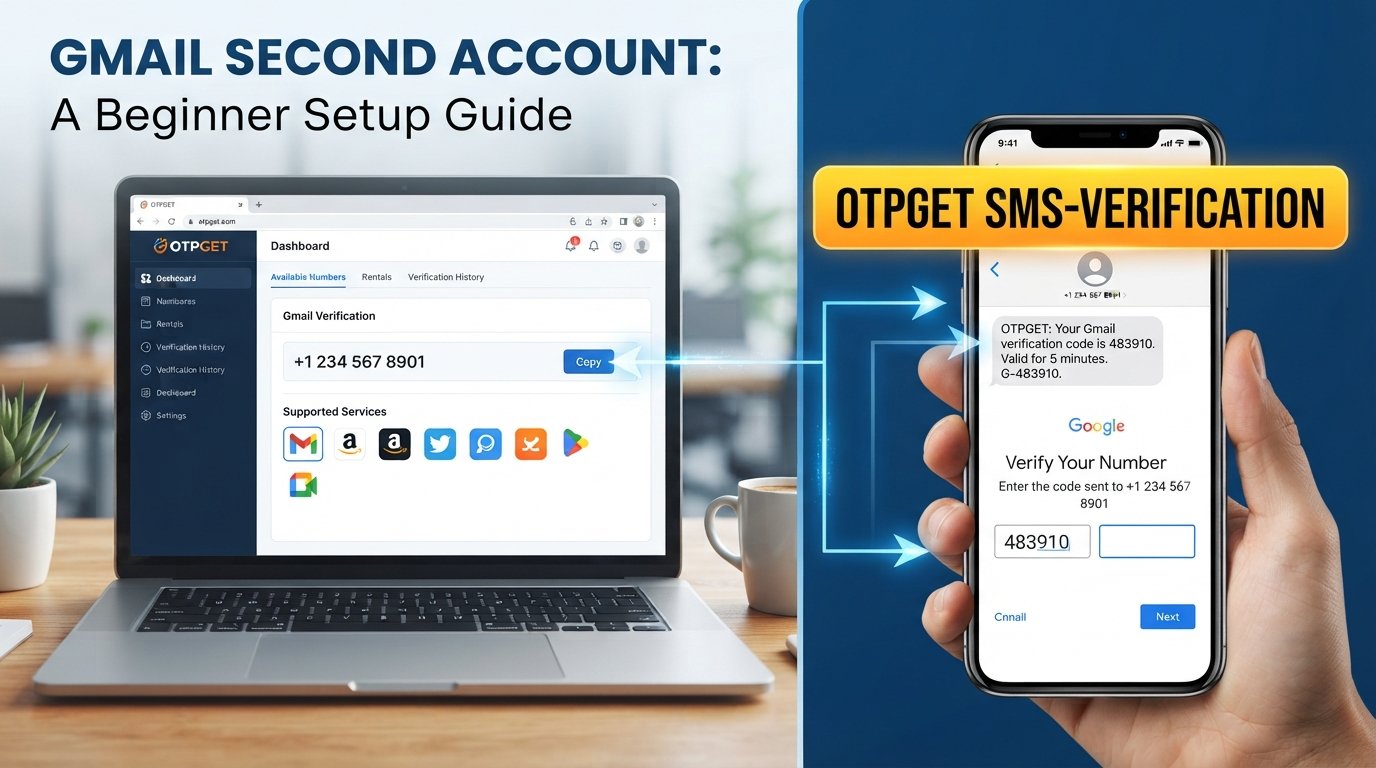
Instead of depending entirely on your personal SIM card for every verification workflow, a service such as OTPGET provides virtual numbers that can receive SMS verification codes for supported services. Its published service information also describes temporary email options and API-based OTP functionality.
The important distinction is that an OTP service does not bypass Google's security controls. It simply provides an alternative channel for receiving verification messages where the relevant service, number, and verification flow support it.
How OTPGET Can Help With OTP Verification
When the main problem is receiving an OTP, the biggest frustration is often the dependency on a particular phone number or mobile carrier.
OTPGET is designed around this specific OTP-receiving use case. According to its published information, the platform provides virtual phone numbers for SMS OTP verification across supported countries and services. It also offers rental numbers and temporary email options for applicable verification workflows.
That can be useful when:
- Your regular SMS delivery is delayed.
- Your carrier is not reliably delivering automated verification messages.
- You need a separate number for an appropriate verification workflow.
- You want to receive an OTP through an online dashboard rather than relying exclusively on a physical SIM.
- You are testing or developing an application that requires OTP functionality.
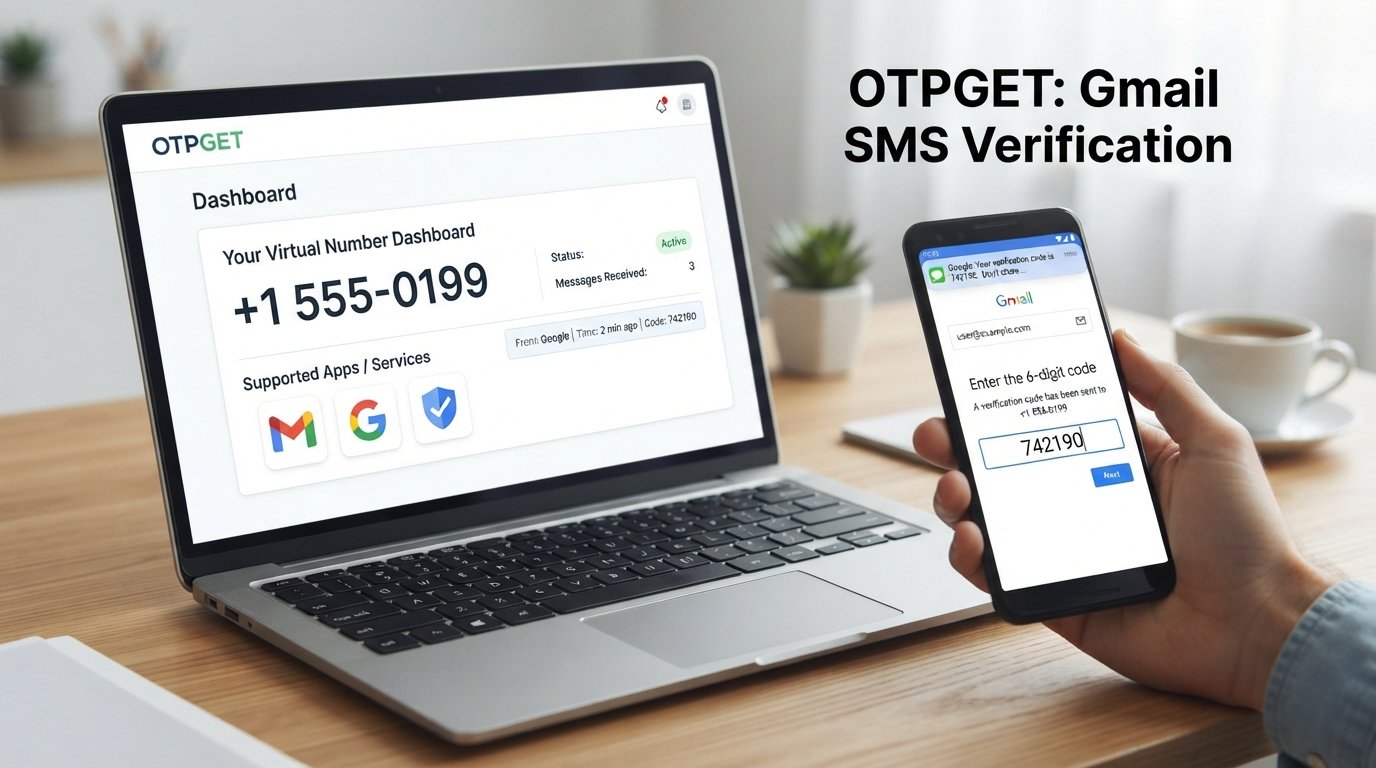
OTPGET's documentation describes an SMS OTP workflow in which a number is requested for a selected service and country, followed by status checking for the incoming SMS code.
Availability can vary by country and service, so users should check what is currently supported before starting a verification attempt.
Most importantly, OTPGET should be used for legitimate verification purposes. It should not be treated as a way to bypass account security, defeat Google's safeguards, access someone else's account, or create unauthorized identities.
How to Use OTPGET for OTP Verification
The exact options available can vary depending on the service and country you select. In general, the process follows the OTP-receiving workflow described by OTPGET:
- Visit OTPGET and access the available OTP verification options.
- Select the appropriate country and supported service for your legitimate verification need.
- Obtain an available virtual number through the relevant OTPGET option.
- Enter that number in the verification form where the service permits its use.
- Request the verification code from the relevant service.
- Check OTPGET for the incoming SMS and retrieve the code when it becomes available.
- Enter the received code into the appropriate verification field.
- Complete the verification process according to the service's instructions.
OTPGET's documentation specifically describes requesting a number and then checking its activation status for a received SMS code.
If a particular service does not accept a virtual number, do not attempt to circumvent that restriction. Use the verification methods the service legitimately provides.
Tips to Avoid Gmail Verification Problems
Prevention is easier than repeatedly troubleshooting a missing code.
Keep your account recovery information accurate and up to date, and make sure any phone number you use for verification is accessible when you need it.
A few good habits can also reduce verification issues:
- Keep your browser and Gmail app updated.
- Maintain a stable internet and mobile connection.
- Check your phone number and country code carefully.
- Avoid requesting multiple codes in rapid succession.
- Watch for SMS filtering or blocked-message settings.
- Follow the verification instructions exactly.
- Keep legitimate recovery methods available.
- Use reliable OTP or verification services when an appropriate use case requires them.
If you regularly work with applications that require SMS verification, having a suitable OTP solution available can also reduce disruption when ordinary SMS delivery is unreliable.
Frequently Asked Questions
Why am I not receiving my Gmail verification code?
Check your phone number, country code, mobile signal, SMS filtering settings, and network connection. If you requested several codes, wait before trying again because repeated attempts can cause additional verification problems.
Why is my Gmail OTP delayed?
SMS delivery can sometimes be delayed by mobile networks, carriers, filtering systems, or temporary service issues. Wait before requesting another code and use the newest valid code if multiple messages eventually arrive.
Why does my Gmail verification code not work?
The code may have expired, been replaced by a newer code, or been entered incorrectly. Request a new code when appropriate and enter the latest code promptly.
What should I do if Gmail SMS verification is not working?
Confirm your number and mobile connection first. Check blocked or filtered messages, restart your phone, and try again after waiting. If another supported verification method is available, consider using it.
Can OTPGET help with OTP verification?
Yes, OTPGET provides virtual numbers for SMS OTP verification for supported services and countries. Its published documentation also describes SMS code retrieval through its OTP workflow.
How can I receive an OTP when my usual SMS verification isn't working?
For an appropriate supported verification use case, you can consider an OTP-receiving service such as OTPGET. Availability depends on the service, country, and number options available at the time.
How can I avoid repeated Gmail verification problems?
Keep recovery information current, use accurate phone details, maintain reliable connectivity, avoid excessive verification attempts, and follow the verification instructions carefully.
Final Thoughts
Gmail verification problems can happen for many reasons, from an incorrect phone number and weak mobile signal to SMS filtering, delayed delivery, repeated attempts, or temporary restrictions.
The first step should always be straightforward troubleshooting. Check your number, confirm the country code, inspect your SMS settings, verify your connection, and give delayed messages time to arrive.
When the specific problem is receiving an OTP and conventional SMS delivery is unreliable, OTPGET is a convenient solution to consider for supported verification use cases. Its virtual-number service is designed to help users receive SMS verification codes through an online platform rather than relying solely on a personal SIM.
If you are dealing with a verification workflow that supports virtual numbers, explore OTPGET and check the currently available country and service options to find an appropriate OTP-receiving solution.