LinkedIn Verification Problems: Causes, Fixes & OTPGET Guide
LinkedIn Verification Problems: Causes and Quick Fixes
Few things are more frustrating than trying to sign in to LinkedIn, verify your phone, or confirm your account and then waiting for a code that never arrives. If you are dealing with LinkedIn verification problems, you may see a delayed SMS, an expired verification code, a failed verification attempt, or no message at all.
The good news is that a missing LinkedIn OTP does not always mean something is seriously wrong with your account. Verification problems can come from an incorrectly entered number, SMS delivery delays, carrier filtering, connectivity issues, repeated code requests, browser problems, or additional security checks.
This guide walks through the most common causes and practical fixes. If the main issue is receiving an OTP or SMS verification message, OTPGET can also be a practical option for appropriate OTP-related verification needs. OTPGET is an independent service and is not affiliated with or endorsed by LinkedIn.
Why LinkedIn Verification Problems Happen
There is rarely one universal reason for a verification code problem. The cause can depend on your phone, carrier, device, browser, account, or the verification method being used.
Common causes include:
- Incorrect phone number: A missing digit or outdated number can prevent the message from reaching you.
- Incorrect country or region selection: The number may be formatted incorrectly if the country code does not match.
- SMS delivery delays: Verification messages can sometimes take longer to arrive than expected.
- Weak mobile connectivity: Poor signal or temporary network problems may interfere with SMS reception.
- Carrier filtering: Some mobile providers may filter or delay certain automated messages.
- Temporary service issues: A verification system or messaging route can occasionally experience disruption.
- Too many attempts: Repeatedly requesting codes can result in delays or temporary restrictions.
- Expired codes: OTPs are generally time-sensitive, so an older code may no longer work.
- Browser or app issues: Cached data, outdated software, or a temporary application error can interfere with the process.
- Device-related problems: Message settings, blocked senders, or notification issues may prevent you from noticing an incoming code.
- Security checks: LinkedIn may require additional verification depending on the account or sign-in situation.
Because several factors can overlap, it is better to troubleshoot systematically rather than repeatedly requesting another code.
Common LinkedIn Verification Problems
Different users describe the same underlying issue in different ways. Here are some of the most common LinkedIn verification issues:
LinkedIn OTP Not Received
You request a verification code, but no SMS appears. The problem may involve your number, mobile network, carrier filtering, or message delivery.
LinkedIn Verification Code Not Received
The verification screen may continue waiting while your phone remains empty. Before requesting another code, check whether the first message is simply delayed.
LinkedIn Verification Not Working
The code arrives, but the verification process does not complete. This can happen when the code has expired, was entered incorrectly, or the verification session has changed.
LinkedIn Verification Failed
A verification attempt may fail even when you entered the information correctly. Account-specific security requirements or technical issues can sometimes be involved.
LinkedIn OTP Not Working
If an OTP is rejected, confirm that you are entering the newest code and that it belongs to the current verification attempt.
LinkedIn SMS Verification Problems
SMS may be delayed, filtered, or unavailable because of mobile-network or carrier-related conditions.
LinkedIn Phone Verification Issues
An entered phone number may not be accepted because of formatting, regional settings, or other account-specific requirements.
Verification Code Expiring
OTP codes are designed to be used within a limited period. If you wait too long, the code may no longer be valid.
Verification Attempts Being Delayed
Repeated requests can make troubleshooting more confusing. Requesting several codes in quick succession may also leave you unsure which message contains the valid code.
Quick Fixes for LinkedIn Verification Issues
Before looking for an alternative OTP receiving method, work through these basic checks.
1. Check the Entered Phone Number
Review every digit carefully. Make sure the number is one you can legitimately access and that it has not recently changed.
2. Confirm the Country Code
Check that the selected country or region matches the phone number. Incorrect international formatting can prevent an SMS from reaching the intended device.
3. Check Your Mobile Signal
If your phone has weak or unstable connectivity, move to an area with better reception and try again after a short wait.
4. Wait Before Requesting Another Code
If the first code has not arrived, give the delivery process a little time. Immediately requesting multiple codes can make it harder to determine which code is current.
5. Check SMS Filtering
Look at blocked contacts, spam filters, message-management settings, and other features that could hide automated messages.
6. Restart Your Connection or Device
A simple device restart or reconnecting to your mobile network can sometimes clear temporary connectivity problems.
7. Try the LinkedIn App or Browser Again
If the issue occurs in a browser, try the official LinkedIn app or another supported browser. If the app is causing trouble, try the browser instead.
8. Clear Temporary App or Browser Issues
Outdated cached data can occasionally cause a verification screen to behave unexpectedly. Restarting the app or clearing relevant browser data may help.
9. Avoid Repeated Verification Requests
If you have already requested several codes, pause rather than continuing to press the resend option. Give the current process time to complete.
10. Use LinkedIn's Recovery or Verification Process
If normal troubleshooting does not resolve the problem, follow LinkedIn's own account recovery and verification instructions. This is especially important when the issue involves identity verification or account access rather than simply receiving an SMS.
What to Do When LinkedIn OTP Is Not Received
When your LinkedIn OTP is not received, use this sequence instead of repeatedly requesting new codes:
- Verify the phone number. Make sure every digit and the country code are correct.
- Confirm the phone can receive SMS. Test normal SMS reception if necessary.
- Check signal and carrier settings. Make sure messages are not being blocked or filtered.
- Wait for a delayed message. Avoid assuming that no SMS means the request failed.
- Use the newest code only. Older codes may expire or become invalid after another request.
- Avoid repeated requests. Give the verification process time before trying again.
- Try another legitimate verification method if LinkedIn provides one.
- Use LinkedIn's account recovery instructions if you still cannot complete verification.
If the problem is specifically that your regular phone cannot receive the verification SMS, an OTP receiving service may be worth considering for an appropriate verification workflow.
That is where OTPGET can become relevant.
How OTPGET Can Help With OTP Verification
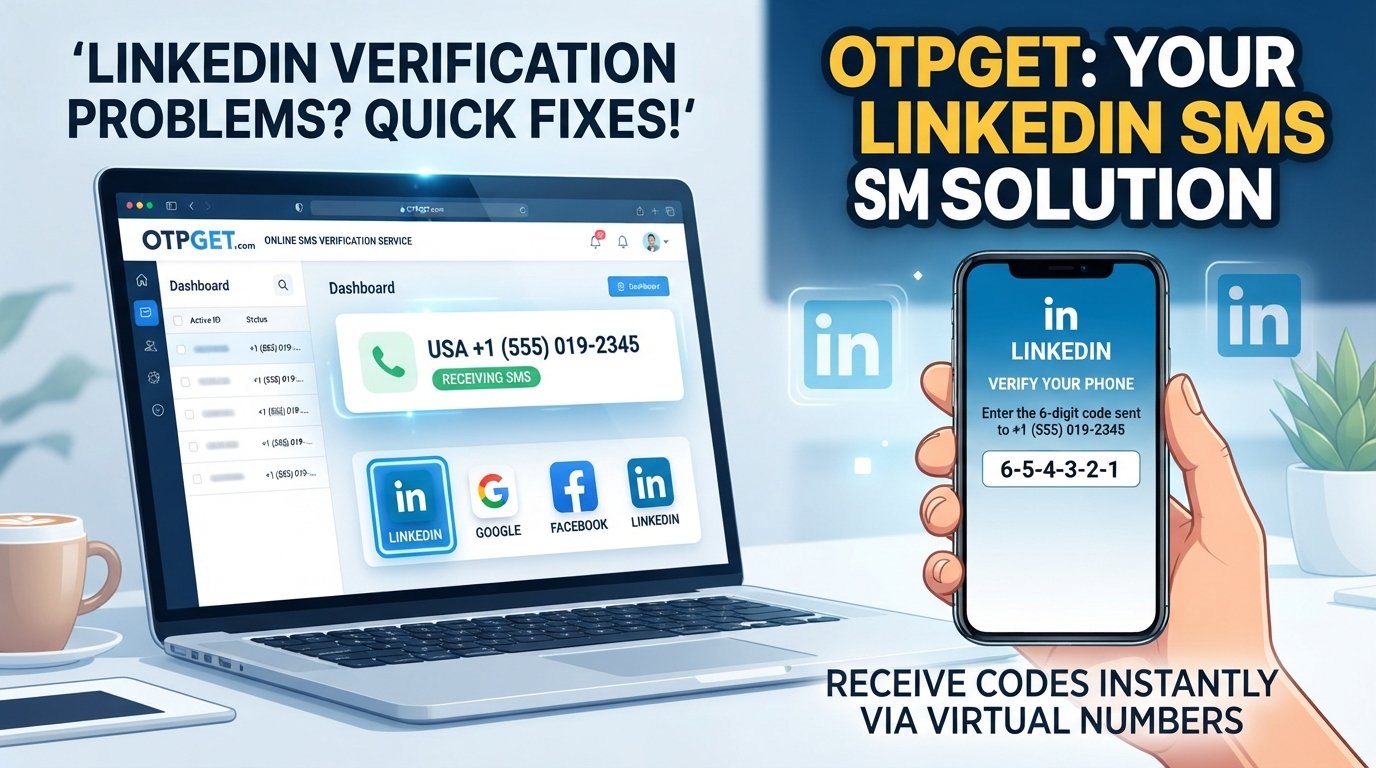
OTPGET provides virtual phone numbers and OTP-related services designed for receiving verification messages online. Its published service information describes virtual numbers for SMS OTP verification, rental numbers, temporary email services, and related API capabilities.
For users who need an alternative way to receive OTP messages, OTPGET can be a practical option where the relevant platform accepts the number and its use is permitted.
Possible use cases include:
- Receiving OTP messages online
- SMS verification workflows
- Using a temporary phone number where appropriate
- Testing verification processes
- Managing OTP-related workflows without relying on a personal mobile number
- Developer and business verification workflows supported by the service
The important distinction is that OTPGET does not replace LinkedIn's own security or verification requirements. It cannot guarantee that LinkedIn will accept a particular virtual number, and it should not be used to bypass account protections.
If LinkedIn requires identity verification, account recovery, or another security step, you should follow LinkedIn's requirements rather than attempting to circumvent them.
Why Choose OTPGET for OTP Verification?
If your main difficulty is receiving the SMS itself, OTPGET may offer a convenient alternative to relying exclusively on your regular mobile number.
Potential advantages include:
- Convenience: OTP messages can be accessed through an online service rather than requiring a physical SIM for every supported workflow.
- Simpler OTP management: Verification messages can be handled through a centralized online interface.
- Online accessibility: OTPGET's service is designed around online access to verification messages.
- Alternative number options: The platform offers virtual numbers for supported OTP use cases.
- Flexible workflows: OTPGET also publishes rental-number and API options for users with different verification requirements.
- Practicality: For someone experiencing persistent SMS delivery difficulties, an alternative receiving method may be easier than repeatedly troubleshooting the same phone connection.
Still, compatibility matters. Not every platform accepts every virtual number, and availability can vary by service, country, provider, or verification method.
How to Use OTPGET for a Verification Code
The exact workflow can vary depending on the service and the OTPGET option available to you. A general process is:
- Visit OTPGET.
- Select an appropriate available number or service if one is offered for your intended verification workflow.
- Enter the provided number where the relevant verification process requests a phone number.
- Request the verification code from the service you are using.
- Monitor OTPGET for the incoming verification message.
- Enter the received code into the relevant verification field.
- Complete the verification process according to the platform's own requirements.
OTPGET's documentation describes a workflow where users can request a virtual number and then check its status for an incoming SMS code.
Do not assume that every number will work with every platform. If a service rejects the number or does not deliver a message, follow that service's supported verification and recovery options.
OTPGET vs. Traditional SMS Verification
| Factor | Traditional SMS | OTPGET |
|---|---|---|
| Convenience | Uses your regular mobile phone and SIM | Provides an online option for supported OTP workflows |
| OTP access | Codes arrive directly in your phone's messaging app | Codes can be received through the available OTPGET workflow |
| Online accessibility | Usually depends on access to your physical device | Designed for online OTP and virtual-number access |
| Use case | Everyday account verification using your personal number | Appropriate OTP workflows where a virtual number is accepted |
| Flexibility | Tied to your existing mobile number | Offers virtual-number and other OTP-related options |
Neither method is universally better. A personal number may be the most appropriate choice for an account you expect to keep long term, while an online OTP service can be useful for specific supported verification scenarios.
Tips to Avoid Future LinkedIn Verification Problems
A few habits can reduce the likelihood of recurring verification trouble:
- Keep your account information accurate and up to date.
- Use a phone number you can legitimately access.
- Keep recovery methods available.
- Avoid requesting excessive OTPs.
- Check your phone's SMS and blocking settings.
- Maintain a reliable mobile or internet connection.
- Keep your browser or LinkedIn app functioning properly.
- Avoid suspicious login behavior that could trigger additional security checks.
- Follow LinkedIn's verification instructions carefully.
- If you change phone numbers, update important account information when appropriate.
The goal is not simply to receive one code. It is to maintain reliable, legitimate access to your account and its recovery options.
Frequently Asked Questions About LinkedIn Verification Problems
Why am I not receiving my LinkedIn verification code?
Check your phone number, country code, mobile signal, SMS filtering, and carrier settings first. A verification SMS can also be delayed, so avoid immediately requesting multiple codes.
What should I do if my LinkedIn OTP is not working?
Use the newest code from the current verification attempt and make sure it has not expired. If the problem continues, restart the app or browser and follow LinkedIn's account verification or recovery instructions.
Why does LinkedIn verification keep failing?
Repeated failures can have several possible causes, including incorrect information, expired codes, technical problems, connectivity issues, or additional account security requirements. Troubleshoot the basic issues before trying repeatedly.
How long should I wait for a verification code?
There is no single waiting period that applies to every verification attempt. If the code is delayed, give the message time to arrive and avoid repeatedly requesting new codes. If it never arrives, check your number, carrier, and available verification alternatives.
Can OTPGET help with OTP verification?
OTPGET can be a practical option for supported OTP and SMS verification workflows. Its published services include virtual numbers for receiving SMS verification codes. However, acceptance depends on the platform being verified, and OTPGET does not guarantee that a particular service will accept a particular number.
What is an online OTP verification service?
An online OTP verification service provides a way to receive verification messages through an online interface rather than relying exclusively on a personal physical SIM. Such services can be useful for appropriate, supported verification workflows.
Is OTPGET officially affiliated with LinkedIn?
No affiliation with LinkedIn is implied. OTPGET should be understood as an independent OTP and virtual-number service, while LinkedIn controls its own verification, security, and account-access requirements.
What should I do if LinkedIn still cannot verify my account?
Use LinkedIn's official account recovery or verification process and provide the information it requests. If the issue concerns identity verification rather than SMS delivery, changing the phone-number method may not resolve the underlying problem.
Final Thoughts
LinkedIn verification problems can come from something as simple as an incorrectly entered phone number or delayed SMS, but they can also involve carrier filtering, expired codes, repeated requests, device issues, or additional security checks.
Start with the basics: confirm your number, check the country code, make sure your phone can receive SMS, wait for delayed messages, and avoid repeatedly requesting new codes. If the issue continues, use LinkedIn's own recovery and verification options.
If your main problem is receiving an OTP and you need an alternative method, OTPGET can be a practical option for supported OTP and SMS verification needs. Its virtual-number services are designed to provide online access to verification messages in applicable workflows.
Use any verification service responsibly, make sure the number is permitted by the platform you are using, and never treat an OTP service as a way to bypass account security.
If receiving the verification SMS is the obstacle, explore OTPGET's virtual-number and OTP services and choose an option that fits your legitimate verification needs.