OTP Not Received in International Roaming: Why It Happens and How to Fix It
You land in another country, open your banking or social app and the verification SMS never comes. OTP not received in international roaming is one of the most common travel problems, and it is rarely the app's fault. It usually comes down to how your home network routes text messages while you are abroad.
Short answer: roaming SMS needs data roaming or voice roaming to be enabled, a visited network that your home operator has a deal with, and enough balance. If the code still does not arrive, try Wi-Fi calling, select the visited network manually, or use a method that does not depend on your SIM, such as an authenticator app.
Why roaming breaks SMS codes
- Your home operator must forward the message to the visited network, and some pairs of networks do this unreliably.
- Many apps send codes through bulk routes that arrive late or not at all when the phone is abroad.
- If the SIM is on a plan without roaming, texts from short codes can be blocked.
- Time-limited codes may expire before a delayed message arrives.
Fixes to try in order
- Switch roaming on in phone settings and restart the phone.
- Select the visited network manually instead of automatic mode and try another carrier if several are listed.
- Turn on Wi-Fi calling if your operator supports it. SMS can then travel over Wi-Fi.
- Check your balance and that your plan includes roaming for incoming messages.
- Request the code by voice call if the app offers it.
- Wait for the resend timer instead of tapping resend repeatedly.
Plan ahead before you travel
- Switch important accounts to an authenticator app so codes do not depend on SMS.
- Save backup codes offline.
- Ask your operator how incoming SMS is handled abroad and what roaming costs.
- Add an email address as a second recovery option.
When a virtual number helps
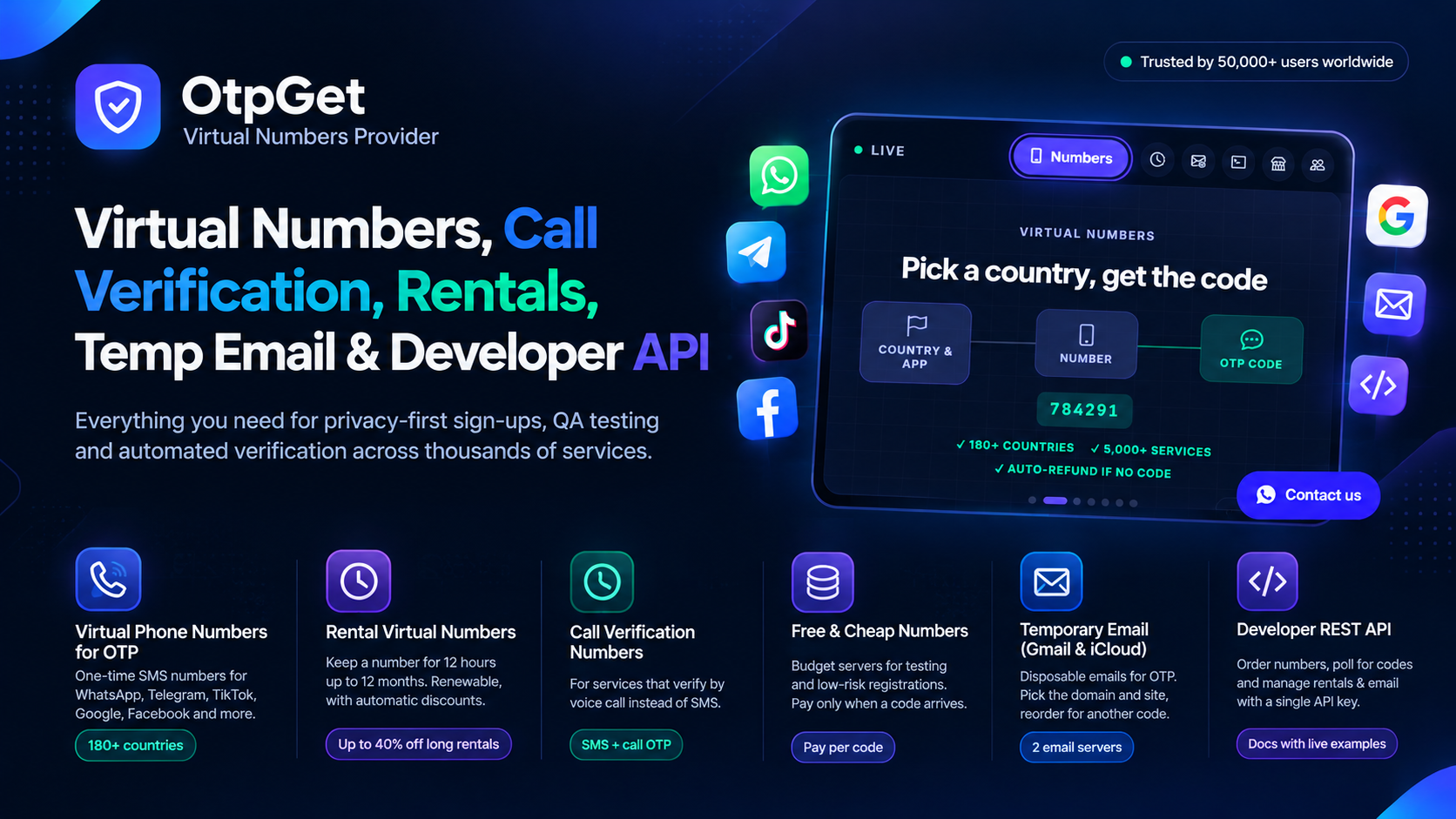
For ordinary app sign-ups while you are travelling, a number that receives codes in your online dashboard does not depend on roaming at all. On OtpGet you pick the app and country, order a number and read the code on screen. It is not meant for banks, wallets or any account tied to your identity; those need your own registered SIM or an authenticator app. Apps decide which numbers they accept, so a small test order comes first, and a manual cancel within 10 minutes returns the amount to your wallet if no code arrives.
What happens on a real trip
A traveller lands abroad and tries to log into a food-delivery app. The SMS never arrives, so they switch to Wi-Fi at the hotel and try again, still nothing. They then turn on Wi-Fi calling, restart the phone and request the code once more. This time the message arrives, because it now travels over the internet instead of the roaming route. The lesson is that a failed OTP abroad is usually a routing problem, and changing the route often fixes it.
Which accounts need a plan before you fly
- Banking and payment apps: move to an authenticator app or a hardware key before you travel.
- Email and cloud accounts: add a second recovery email and save backup codes.
- Social and shopping apps: these can usually wait, or you can use a backup option for non-critical ones.
A few minutes of preparation before departure saves hours at a hotel desk. Remember that every code has an expiry, so a delayed message may arrive after the app has already stopped accepting it. If that happens, request a fresh code rather than entering the old one.
Frequently Asked Questions
Why do calls work but SMS does not?
Voice and SMS use different routes. A call can connect while a bulk SMS route fails.
Does Wi-Fi calling fix OTP problems?
Often yes, if your operator supports SMS over Wi-Fi. Check with your operator before you travel.
Should I use my banking app abroad with a virtual number?
No. Banks need the number registered to you. Use your own SIM or an authenticator app.
What is the safest long-term fix?
Move critical accounts to an authenticator app and keep backup codes offline.
Conclusion
Roaming problems are about routing, not about you. Enable roaming, choose the network manually, try Wi-Fi calling, and move important accounts away from SMS. For everyday sign-ups, create a free account and use a private number as a backup.