Zoom Account Verification With a Virtual Number
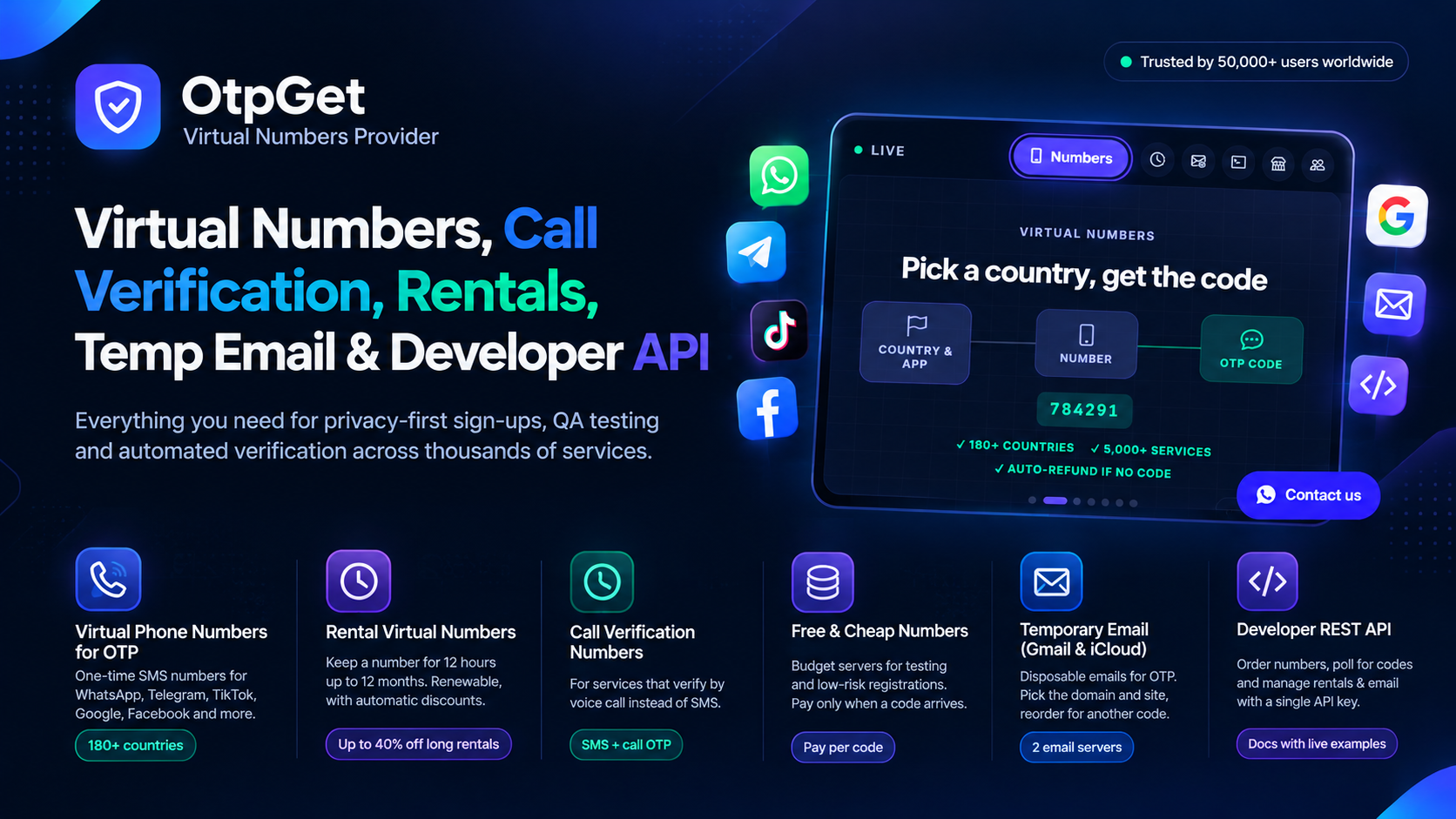
Meeting platforms sit at the centre of work and school, which makes Zoom verification more important than many casual sign-ups. The service may send a code by SMS to confirm a number for security or recovery. If you have no SIM, are travelling or want to separate your work and personal numbers, a virtual number can look attractive. This guide explains how the check works and how to avoid problems.
How Does Zoom Verification Work?
When you sign up, secure an account or use phone-based features, the service can send a code by text to confirm your number. You enter the code and the number is linked. Organisations may also manage accounts centrally and apply their own sign-in rules.
Is a Virtual Number Appropriate?
For an account that you use on a personal basis, a virtual number can work if the service accepts it, but you need a way back in. For an account tied to your employer, school or clients, follow their rules and avoid personal workarounds. A short-lived number is a poor foundation for any account that you rely on for scheduled meetings.
| Account type | Suggested approach |
|---|---|
| Personal, occasional use | Rental or your own number |
| Freelancer with clients | A stable business number |
| Employer or school account | Follow organisational policy |
| Test account for software | Single-use via API |
Step-by-Step: Receive the SMS
- Start the verification and choose the phone option.
- Create an OtpGet account and add a small balance.
- Choose the service and a country with live stock.
- Copy the number and enter it with the correct country code.
- Request the code and watch your dashboard.
- Enter the code before it expires.
- Add a recovery email and enable two-step verification.
Why Meetings Make Recovery Urgent
If you are locked out minutes before an important call, the cost is immediate. Plan recovery before you need it. Make sure that you have a second sign-in method, up-to-date recovery email and a way to join meetings from another device. Keep a backup contact method for key participants so you can reschedule quickly if something goes wrong.
Security for Meetings
- Use passcodes and waiting rooms for meetings.
- Do not post meeting links publicly.
- Keep the app updated.
- Limit screen-sharing to hosts where appropriate.
- Be careful of fake invitations that link to look-alike login pages.
If the Code Does Not Arrive
- Check the number and country code.
- Wait through the resend timer.
- Check filters and signal.
- Use email or the authenticator method if available.
- Cancel and try one different virtual number.
Responsible Use
Use virtual numbers only for accounts you may lawfully hold, and do not use them to hide the identity of someone who disrupts meetings or abuses other users. Respecting the platform's rules and your organisation's policy keeps your account and reputation intact.
Preparing for Important Meetings
Do not wait for the meeting to find out that something is wrong. Sign in a few minutes early, test your audio and video and confirm that you can join from a second device. Keep the meeting link and any dial-in details saved offline. If you are the host, share a backup way to reach you, such as email or a messaging app, so attendees do not get stuck if a verification problem occurs.
- Join early and test your setup.
- Have a second device ready.
- Save links and dial-in numbers offline.
- Share a backup contact method with key attendees.
Freelancers and Small Teams
Freelancers and small teams often use personal accounts for client work. This can cause problems when someone leaves or when a client asks who owns the account. Where possible, create a business account with a company email and a number that the business controls. Document the setup and keep recovery details in a shared, secure place. It looks more professional and protects continuity.
Common Mistakes to Avoid
- Verifying with a number you cannot access next week.
- Sharing a single login between several people.
- Skipping two-step verification on an account that stores recordings.
- Clicking meeting invitations from unknown senders.
- Forgetting to update the number after changing SIM cards.
Common Mistakes With Meeting Accounts
- Using a personal number on an account that belongs to the business: it creates a recovery problem when staff change.
- Posting meeting links publicly: uninvited guests can disrupt sessions.
- Skipping waiting rooms and passcodes: these are quick protections against intruders.
- Ignoring updates: old versions can contain known security flaws.
- Letting recordings pile up: stored recordings can contain sensitive information.
Recording and Privacy Basics
Meetings often involve personal or commercial information. Before you record, tell participants and follow the laws and policies that apply to you, since consent rules vary by place. Store recordings securely, share them only with the people who need them and delete them when they are no longer required. If you host events for the public, publish a short privacy note explaining what you record and why.
Setting Up a Dedicated Work Profile
- Create the account with a business email you control.
- Use a stable number that will remain with the business.
- Enable two-step verification with an authenticator app.
- Set default meeting security options, such as passcodes and waiting rooms.
- Document who has access and review it every few months.
This kind of setup removes the need for emergency fixes and gives clients a professional impression. It also helps if you ever need to hand the account over, because everything is documented and recoverable.
Developers Building Meeting Integrations
Teams that build tools around meeting platforms need test accounts and the ability to test sign-in flows. A temporary-number API can provide numbers for your own staging accounts, and the OtpGet documentation explains how to order and cancel orders. Keep your tests within the platform's developer terms.
Travelling and Time Zones
Consultants and remote workers often join meetings from different countries. A home number may not receive texts while you roam, and a code that arrives late is useless. Before you travel, move key accounts to an authenticator app, which works offline, and keep recovery codes accessible. Check that your calendar shows the right time zone for each meeting, because errors in time zones cause far more missed calls than technical faults.
Common Questions Beyond the FAQ
Readers who explore zoom verification often ask what to do when the first attempt fails. The answer is to stay calm and change one thing at a time: wait for the full countdown, check the number format, cancel the order and try a different number. Avoid sending many requests in a row, because many apps respond to that pattern with longer blocks. If the problem continues, try again later, since filters and stock change throughout the day. Patience and a clear routine solve more problems than speed does.
Frequently Asked Questions
Can I use a virtual number for Zoom?
It can receive an SMS code, but acceptance varies. For work or school accounts, follow your organisation's rules and use a stable number.
Why is my verification code not arriving?
Typically a wrong number, filters, delays or too many requests. Wait for the timer and try once more.
What if I lose access to the number?
Use your recovery email or authenticator, or ask your administrator if the account is managed.
Is SMS enough protection?
An authenticator app is stronger. Use it where available.
Can I use a temporary number for test accounts?
Yes, for accounts you own and can afford to lose, such as development tests.
Conclusion
Zoom verification protects accounts that run your meetings, so choose a stable number, add stronger sign-in methods and plan recovery. A virtual number suits tests and personal cases within the rules. To try one, receive SMS online with OtpGet.
Related reading: more work-from-anywhere guides on the OtpGet blog.