Microsoft Teams Login Without Phone Number: OTPGET Guide & Tips
How to Get Microsoft Teams Login Without Phone Number
Microsoft Teams is widely used for workplace communication, meetings, collaboration, and online conversations. But when you sign in or create an account, Microsoft may sometimes request an additional verification step.
For users who prefer not to provide a personal mobile number, that can create an obvious privacy and convenience concern.
The good news is that a phone number is not necessarily the only verification method available. Depending on the Microsoft account, organization, security settings, and sign-in circumstances, you may see options such as email verification, an authenticator app, a passkey, or another approved method. Microsoft also notes that Teams sign-in requirements can vary according to organizational settings.
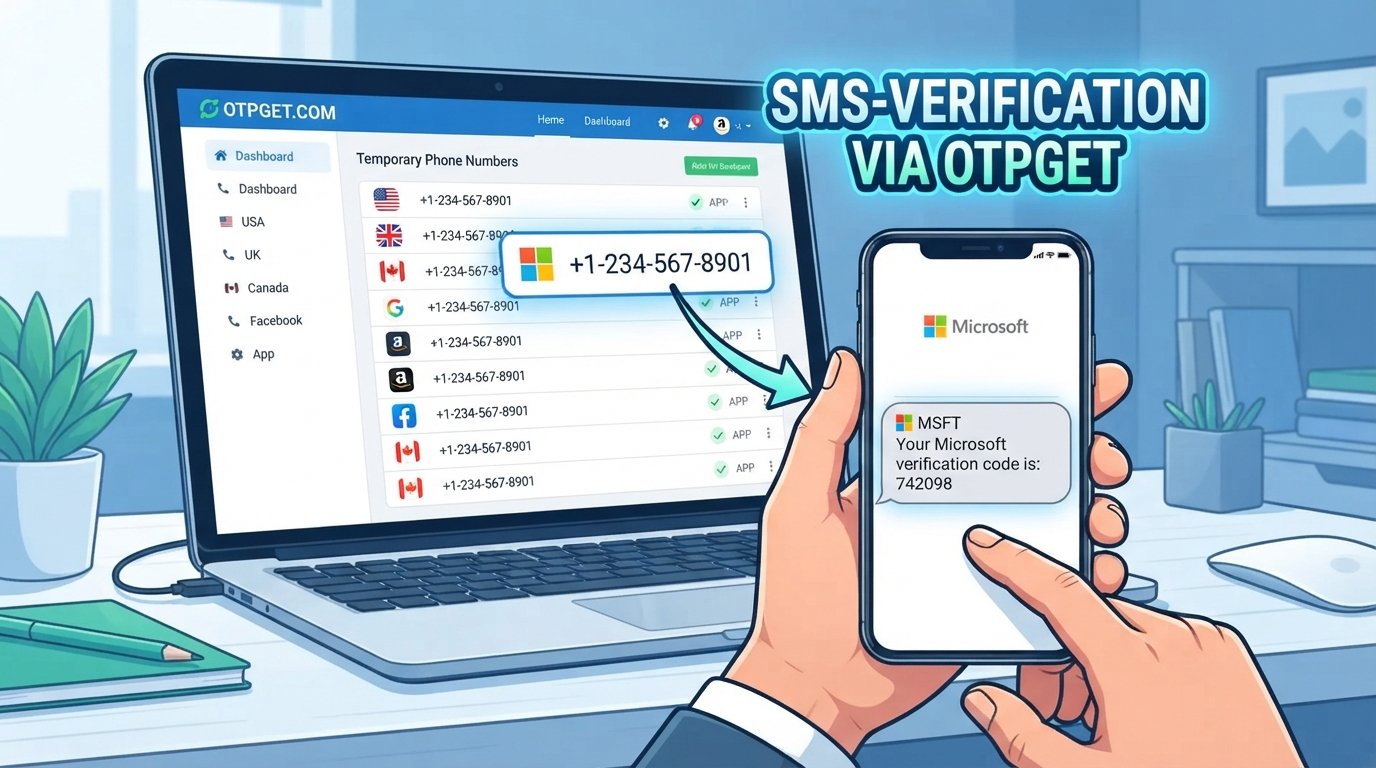
If SMS verification is specifically requested and an alternative number is appropriate and accepted, OTPGET can be considered as a service for receiving verification SMS without exposing your personal number.
The important distinction is that OTPGET is not a way to bypass Microsoft security. It simply provides SMS/OTP functionality where compatible with the service being verified.
Can You Use Microsoft Teams Without a Phone Number?
Yes, in some situations, but there is no universal method that guarantees Microsoft Teams access without phone verification.
For Teams Free, Microsoft describes signing in with an email address or phone number and completing the sign-in process with a password or verification code when prompted. For work and school accounts, the verification methods available to you can depend on your organization's Microsoft 365 or identity-management settings.
Microsoft also supports multiple security methods for Microsoft accounts. Depending on the account, these can include:
- An email address
- Microsoft Authenticator
- A passkey
- Other approved authentication methods
- SMS, where it remains available for the relevant account or organization
Microsoft's security documentation specifically says that available verification options can differ between accounts.
Therefore, if you want a Microsoft Teams account without a phone number, the first step is to check which verification choices Microsoft actually presents to you.
Why Does Microsoft Teams Ask for Phone Verification?
Phone verification is generally part of Microsoft's broader account-security process rather than a Teams-specific requirement in every situation.
Common reasons for an additional verification request include:
- Account security: Microsoft may want additional evidence that the person signing in is the legitimate account holder.
- Identity verification: A security code can help confirm control of an approved contact method.
- Abuse and spam prevention: Additional verification can make automated or abusive account activity more difficult.
- Unusual sign-in activity: A new device, location, or other risk signal may trigger additional authentication.
- Organization security policies: Work and school accounts can have authentication requirements configured by an administrator.
Microsoft explains that additional verification can be requested as part of protecting an account. For work or school accounts, administrators can also control which MFA methods are available.
This is why a Teams login that worked normally before may occasionally request an extra verification step.
How to Get Microsoft Teams Login Without Phone Number
If you are trying to complete a Microsoft Teams login without phone number, start with Microsoft's own available options before considering an SMS verification service.
1. Use an existing Microsoft account
If you already have a Microsoft account that is properly configured, try signing in with your existing credentials.
You may not need to add a new phone number simply to access Teams. If Microsoft requests additional verification, look at the methods displayed on the sign-in screen.
2. Check for another verification method
Microsoft accounts can support methods such as email verification, Microsoft Authenticator, and passkeys, depending on the account. Microsoft recommends keeping multiple verification methods available where possible.
If an alternative appears, use that method rather than adding a personal phone number unnecessarily.
3. Use a work or school account when appropriate
If your employer or educational institution provides Microsoft 365 access, you may be able to use the account supplied by your organization.
Keep in mind that the organization may require MFA or specific verification methods. If the desired option is unavailable, the administrator may control which alternatives can be used.
4. Consider an SMS verification service when appropriate
If Microsoft specifically requests an SMS code and you have a legitimate reason not to use your personal number, a service such as OTPGET may be an option if the relevant number is accepted by Microsoft's verification process.
This is not a security bypass. The Microsoft verification screen still determines whether the number and verification method are accepted.
How OTPGET Can Help With Microsoft Teams Verification
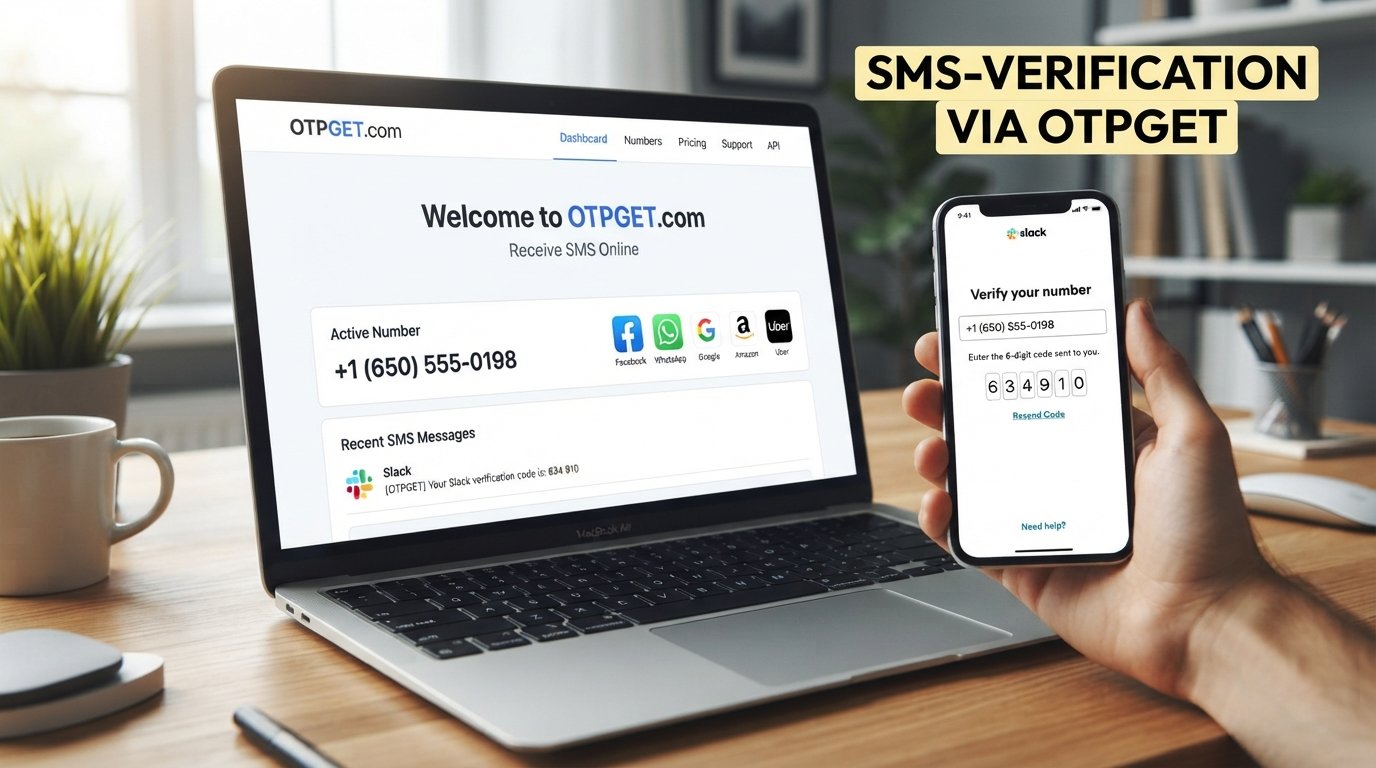
OTPGET provides virtual phone numbers and SMS OTP functionality designed for receiving verification messages. Its published documentation describes obtaining a number for SMS OTP, checking its activation status, and retrieving a received verification code.
For someone looking for a phone verification alternative, the basic concept is straightforward:
- Select an available SMS verification service through OTPGET.
- Obtain a suitable number according to the service's instructions.
- Enter that number into the Microsoft verification field if Microsoft accepts it.
- Wait for the SMS.
- Retrieve the legitimate verification code through OTPGET.
- Enter the code into Microsoft's verification screen.
However, compatibility is important. OTPGET does not control Microsoft's verification system, and a number supplied by a third-party service may not always be accepted.
OTPGET's availability, supported services, countries, and number types can change, so users should check the current options displayed by the service rather than relying on assumptions.
Step-by-Step: Using OTPGET for Verification
If SMS verification is required and using a third-party verification number is appropriate for your situation, the general process is:
1. Open the OTPGET website
Go to OTPGET and review the currently available verification options.
2. Choose the appropriate SMS/OTP service
Look for the relevant SMS or OTP verification functionality available through OTPGET.
Do not assume that every service is supported simply because OTPGET offers SMS verification.
3. Select the relevant country or service
Choose an available country and service according to the current OTPGET options and Microsoft's requirements.
4. Obtain the provided number
Use the number according to OTPGET's instructions. OTPGET's documentation describes a process for requesting a number and monitoring its activation status.
5. Enter the number into Microsoft's verification screen
If Microsoft accepts the number, enter it exactly as requested.
If Microsoft rejects it, do not attempt to circumvent the restriction. Instead, return to the verification options Microsoft provides.
6. Wait for the verification SMS
If the number is compatible and the SMS is sent successfully, the verification message can be retrieved through the applicable OTPGET functionality.
7. Retrieve the OTP
OTPGET's documentation describes checking an activation status and retrieving the received SMS code.
8. Enter the code into Microsoft
Enter the legitimate verification code into the Microsoft verification prompt.
9. Continue account setup or sign-in
If Microsoft accepts the verification, continue with the normal Teams or Microsoft account process.
Important: Microsoft can reject particular numbers or require another verification method. If that happens, follow Microsoft's instructions rather than trying to defeat or circumvent its security controls.
Why People Look for Microsoft Teams Login Without a Personal Phone Number
There are several legitimate reasons someone may prefer not to use a personal number for online account verification.
Privacy
Some users simply want to keep their personal mobile number separate from online services.
Fewer unwanted messages
Using a dedicated verification number can help keep personal communications separate from account-related SMS.
Separate work and personal information
Someone managing work, testing, or other legitimate online activities may prefer to keep verification activity separate from their everyday phone.
Convenience
A suitable online verification number can be useful when a service specifically requires SMS but the user does not want to expose a personal number.
These considerations do not remove Microsoft's security requirements. The verification method still needs to be accepted by Microsoft.
Microsoft Teams Without Phone Verification: What to Know
There is no universal trick for Microsoft Teams without phone verification.
The verification experience depends on factors such as:
- The type of Microsoft account
- Whether the account is personal, work, or school-based
- Organization policies
- Available authentication methods
- Microsoft's security requirements
- The circumstances surrounding sign-in or registration
Microsoft's own documentation lists alternatives such as email, Authenticator, and passkeys for applicable accounts. It also notes that some accounts may no longer offer the same phone-based options as others.
This means an online SMS number should be treated as one possible option, not a guaranteed replacement for every Microsoft verification process.
OTPGET vs. Using Your Personal Phone Number
| Factor | Personal Phone Number | OTPGET |
|---|---|---|
| Personal number exposure | Uses your everyday mobile number | Can provide an alternative number where available |
| Convenience | No separate verification service is needed | Requires using the OTPGET service |
| SMS verification | Depends on Microsoft's acceptance of your number | Depends on Microsoft's acceptance of the supplied number |
| Privacy considerations | Your personal number is used for the verification process | Can help keep your personal number separate |
| Availability | Depends on your mobile service | Depends on OTPGET's current number and service availability |
The key point is that neither option overrides Microsoft's authentication rules. The difference is primarily whether you use your personal number or an available third-party verification number.
Tips for a Smooth Microsoft Teams Verification Process
A few simple practices can reduce unnecessary verification problems:
- Use accurate account information. Keep your Microsoft account details consistent and legitimate.
- Follow Microsoft's instructions. The options displayed on your account should take priority.
- Check SMS compatibility. If using an online verification number, confirm that the relevant service is currently available through the provider.
- Enter OTP codes promptly. Verification codes can expire.
- Avoid repeatedly requesting codes. Multiple requests can create confusion or trigger additional security checks.
- Check alternative methods. Look for email, Authenticator, passkey, or another available verification option.
- Protect your credentials. Never share your Microsoft password with an SMS verification provider.
- Never share verification codes. An OTP is intended for the verification process and should not be given to another person.
- Respect account and service rules. Use verification services only for legitimate account access and activities permitted by the relevant service.
Frequently Asked Questions
1. Can I log into Microsoft Teams without a phone number?
Sometimes. Microsoft Teams can use an existing Microsoft account, and the verification methods available to you depend on your account and circumstances. Some users may be offered email, Authenticator, passkey, or another method instead of SMS.
2. Can I create a Microsoft Teams account without phone verification?
It depends on the account creation and verification flow Microsoft presents. There is no universal method that guarantees a Microsoft Teams sign-up without phone verification.
3. Why does Microsoft Teams ask for a verification code?
Additional verification helps Microsoft confirm account ownership and protect accounts against unauthorized access. Work and school accounts can also have organization-specific MFA requirements.
4. Can OTPGET receive Microsoft Teams OTP codes?
OTPGET provides SMS OTP functionality, but compatibility with Microsoft Teams or a particular Microsoft verification flow cannot be guaranteed. Microsoft decides whether a supplied number is accepted.
5. Is OTPGET useful if I do not want to use my personal number?
It can be useful when you need SMS verification and an available OTPGET number is compatible with the service. It provides an alternative number rather than bypassing Microsoft's verification process.
6. What should I do if Microsoft rejects a verification number?
Follow the alternative verification methods Microsoft provides. Depending on the account, you may be able to use email, Microsoft Authenticator, a passkey, or another approved method.
7. Can I use an existing Microsoft account without adding a phone number?
Potentially. If your existing account already has an available verification method and Microsoft does not require a phone number for the particular action, you may not need to add one.
8. Is phone verification always required for Microsoft Teams?
No single requirement applies to every Teams user. Microsoft distinguishes between account types and authentication configurations, and organizational policies can affect available verification methods.
Final Thoughts
Getting a Microsoft Teams login without phone number is not about finding a way around Microsoft's security. It is about understanding which legitimate verification methods are available for your particular account.
Start with the options Microsoft provides, such as an existing account, email verification, Microsoft Authenticator, a passkey, or an organization-provided authentication method. If SMS verification is specifically required and using an alternative number is appropriate, OTPGET can be considered as a way to receive an SMS verification code without using your personal number.
Just remember that compatibility is never guaranteed. Microsoft controls its own verification requirements, while OTPGET provides the SMS/OTP functionality. Before using any service, review its current available options and make sure your intended use complies with the relevant terms and account requirements.
For readers who want to explore the option, visit OTPGET and review its current verification services before proceeding.
8. Suggested Internal Links
- Suggested internal link: Microsoft Teams verification guide
Purpose: Explain common Teams and Microsoft account verification requirements in greater detail. - Suggested internal link: How SMS OTP verification works
Purpose: Educate readers about one-time passwords, SMS delivery, and verification workflows. - Suggested internal link: Temporary phone numbers for SMS verification
Purpose: Explain the differences between personal numbers, temporary numbers, and longer-term virtual numbers. - Suggested internal link: OTPGET virtual number guide
Purpose: Introduce readers to OTPGET's available virtual-number and SMS verification functionality. - Suggested internal link: Microsoft account security methods
Purpose: Explain alternatives such as email verification, Authenticator, passkeys, and other security methods.
9. Suggested Authoritative External Sources
- Microsoft Support — Microsoft account security info & verification codes: Covers available sign-in and verification methods, including email, Authenticator, and passkeys.
- Microsoft Support — Help us secure your account: Explains why Microsoft may request additional account verification.
- Microsoft Support — How to log in to Microsoft Teams: Covers Teams sign-in and explains that additional verification may depend on organizational requirements.
- Microsoft Support — Microsoft 365 multifactor authentication: Explains MFA and how organization settings affect available verification methods.
- OTPGET official documentation: Provides the service's published information about SMS OTP numbers, activation status, and code retrieval.