How to Get OneDrive Login Without Phone Number: Safe Ways
How to Get OneDrive Login Without Phone Number
Trying to access OneDrive when you no longer have access to your usual phone number can be frustrating. The important thing to understand is that OneDrive authentication is tied to the Microsoft account behind it, so the solution usually involves resolving the Microsoft account's verification requirement rather than changing OneDrive itself.
Fortunately, a phone number is not necessarily the only way to verify a Microsoft account. Depending on your account configuration, Microsoft may offer email, an authenticator app, a passkey, or another previously configured verification method. Microsoft also provides account-recovery tools for situations where the normal sign-in process is unavailable.
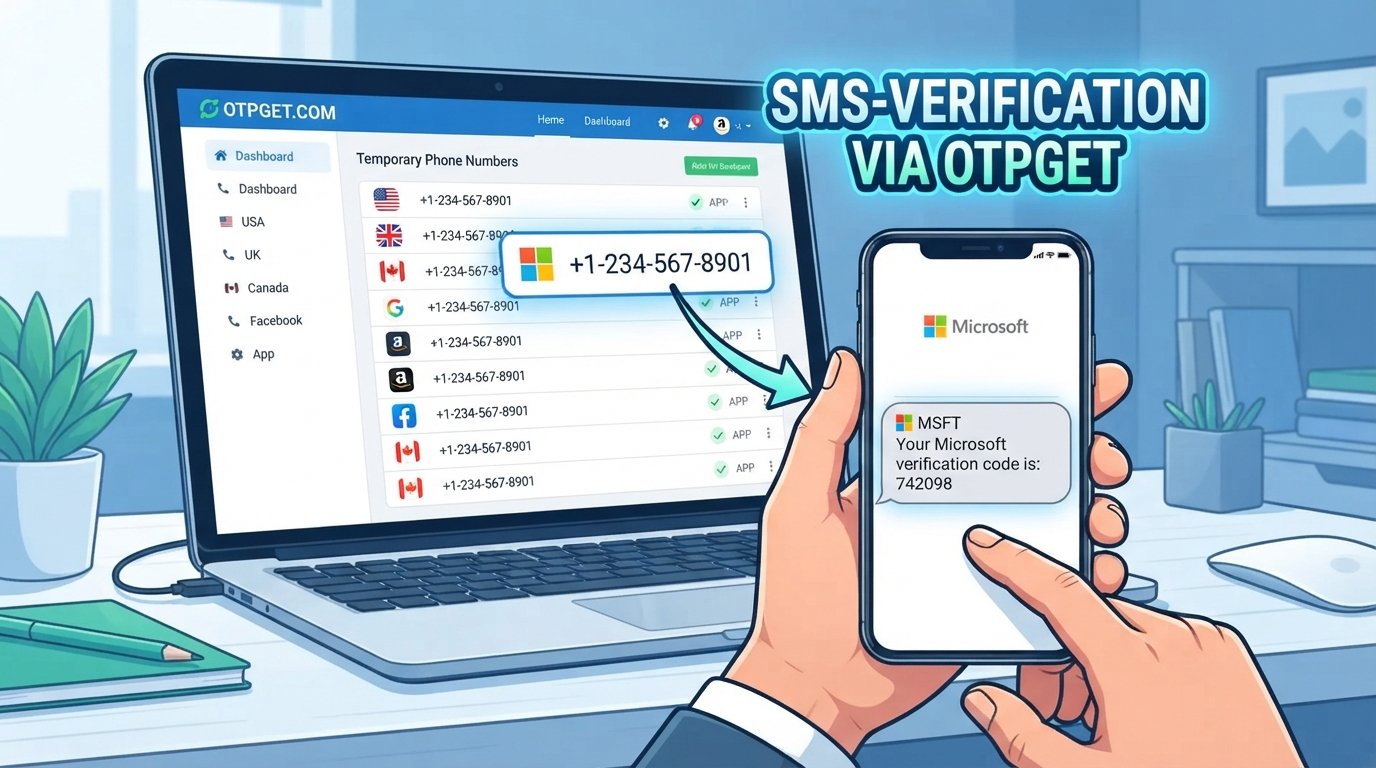
For users who legitimately need an SMS verification method and whose required service and number type are supported, an OTP verification service such as OTPGET can also be worth considering. OTPGET provides virtual numbers intended for receiving verification messages, although successful use depends on whether the relevant service accepts that number and verification method.
Can You Log Into OneDrive Without a Phone Number?
Yes, in some circumstances you can access OneDrive without relying on your personal phone number.
OneDrive uses your Microsoft account for authentication. When you sign in, Microsoft may ask you to prove your identity, particularly when additional security has been configured or when the sign-in requires verification.
The available options depend on your specific account. Microsoft documents alternatives including recovery email addresses, Microsoft Authenticator, and passkeys. Some accounts may also provide an option such as “Sign in another way” when multiple verification methods have already been configured.
If you have lost access to all available methods, Microsoft's account recovery process may be the appropriate route. The recovery process asks for information that can help establish ownership of the account.
The key point is that there is a difference between using an alternative verification method and bypassing authentication. The first is legitimate account access; the second is not.
Why OneDrive May Ask for a Phone Verification Code
A Microsoft account can request additional verification for several reasons.
Common situations include:
- Protecting an account against unauthorized sign-ins
- Confirming your identity during account recovery
- Completing two-step verification
- Signing in from a new or unfamiliar device
- Responding to unusual sign-in activity
- Adding or changing security information
Microsoft explains that additional verification methods are designed to help confirm that the person signing in is the legitimate account holder.
The exact prompt can vary. One account might offer an email code, while another may show Microsoft Authenticator, a passkey, or another configured option.
How to Get OneDrive Login Without Phone Number
If you need OneDrive account access but cannot use your usual phone number, work through the following legitimate options in order.
1. Check for an Already Signed-In Device
If you are already signed into your Microsoft account on a trusted computer, tablet, or other device, avoid signing out unnecessarily.
From an existing authenticated session, you may be able to review your security information and add another permitted verification method. Microsoft provides settings for managing how you sign in and verify your identity.
2. Select Another Verification Method
When Microsoft displays a verification prompt, look for options such as “Other ways to sign in” or “Sign in another way.”
Depending on your account, available methods can include:
- Recovery email
- Microsoft Authenticator
- Passkey
- Previously configured security information
- Other verification methods supported by the account
Microsoft notes that available choices vary by account and configuration.
3. Use Microsoft Account Recovery
If you cannot access your normal verification method, use Microsoft's official recovery process rather than trying to circumvent the security check.
Microsoft recommends using its Sign-in Helper to identify account-access problems. If necessary, eligible users can proceed with the account recovery form and provide information associated with the account.
For the official recovery guidance, use Microsoft Account Recovery Support.
4. Check for an Authenticator or Passkey
If you previously configured Microsoft Authenticator or a passkey, you may be able to complete verification without receiving an SMS.
Microsoft specifically lists Authenticator and passkeys among alternative ways to verify a sign-in.
5. Consider a Legitimate OTP Service When Appropriate
If Microsoft specifically presents SMS verification, you need access to a number, and the service and number are supported, a legitimate OTP verification service may provide an alternative to using your personal number.
This is where OTPGET can fit into the process. It offers virtual numbers for SMS OTP verification, with availability depending on the selected service and country.
However, this should never be treated as a way to bypass Microsoft security. You should only use a verification method for an account you own or are authorized to access, and you should follow the requirements displayed by Microsoft.
How OTPGET Can Help With OneDrive Verification
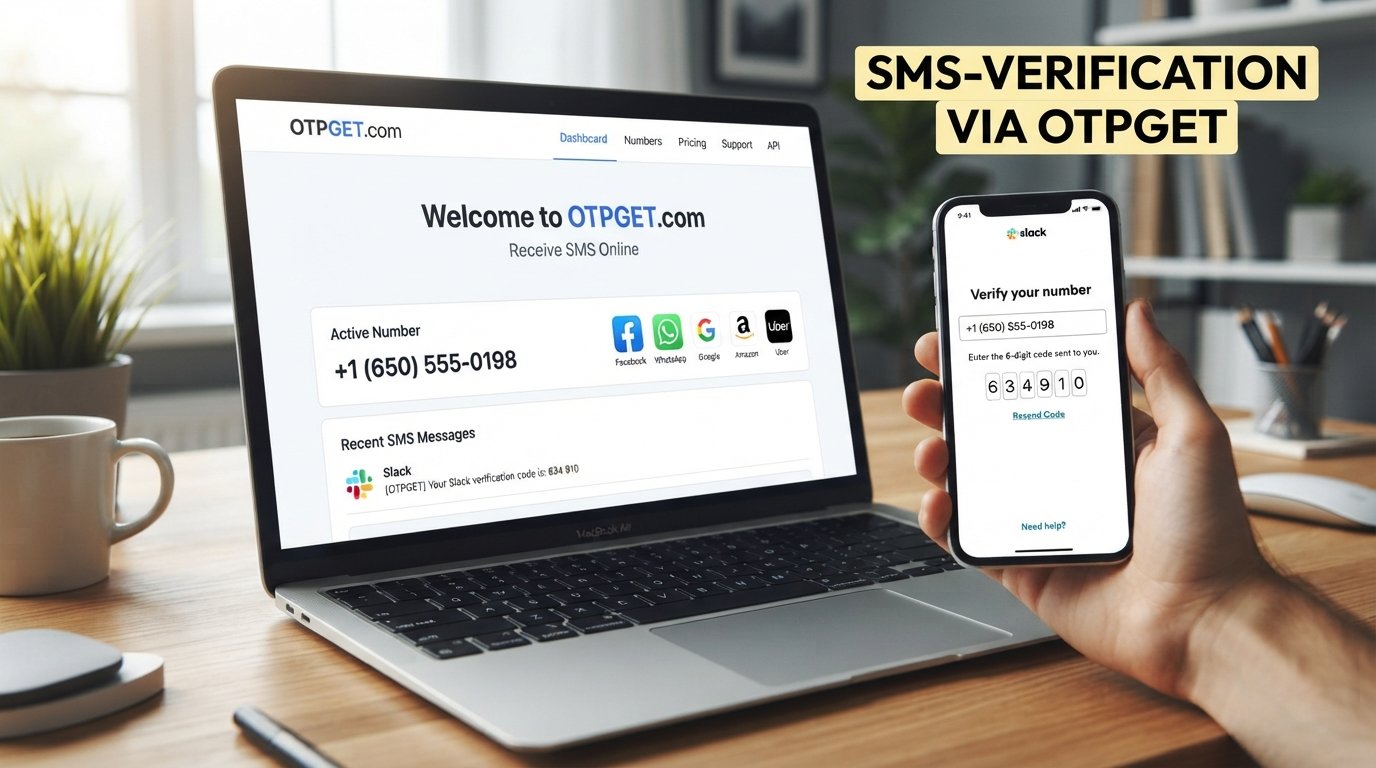
OTPGET provides virtual phone numbers designed to receive SMS verification codes. Its documentation describes an SMS OTP workflow in which a user obtains a number and checks the associated order for an incoming verification message.
For a legitimate OneDrive or Microsoft account sign-in, the basic concept is straightforward:
- Microsoft requests phone-based verification.
- You obtain a supported verification number through OTPGET, if the relevant service and country are available.
- You enter the number into the appropriate Microsoft verification field.
- Microsoft sends a verification code if it accepts the number and requires SMS verification.
- You retrieve the incoming code through the supported OTPGET workflow.
- You enter the code into Microsoft's verification screen.
- If Microsoft accepts the verification, you continue with the normal sign-in process.
This does not guarantee that Microsoft will accept a particular virtual number. Microsoft's verification requirements can vary, and a number may be unavailable, unsupported, or rejected.
OTPGET's own documentation shows that its service availability depends on factors such as service, country, provider, and number availability.
Step-by-Step OTPGET Workflow
If an SMS-based verification method is legitimately available to you, the general workflow is:
- Open OTPGET.
Visit the OTPGET service and sign in or create an account as required. - Select the appropriate option.
If available, choose the relevant country, service, and number type. - Obtain a verification number.
OTPGET's documented SMS workflow provides a number associated with an order. - Enter the number during legitimate verification.
Use the number only where the account owner is authorized to complete the verification. - Request the verification code.
Complete Microsoft's normal verification process. - Check OTPGET for the incoming SMS.
The service documentation describes checking the activation status for an incoming code. - Enter the received code.
Enter the code into Microsoft's verification field before it expires. - Complete the sign-in.
If the verification is accepted, continue with the normal Microsoft account login process.
Do not repeatedly purchase numbers or request codes simply to work around a rejected verification attempt. If Microsoft does not accept the method, use another legitimate verification option or account recovery.
What If the OTP Does Not Arrive?
An absent verification code does not necessarily mean something is wrong with your Microsoft account.
Try these steps:
- Wait briefly and check the OTPGET status again.
- Confirm that the selected service and country were correct.
- Make sure the verification number was entered correctly.
- Avoid repeatedly requesting codes.
- Check whether the required service is actually supported.
- Try another Microsoft verification method if one is offered.
- Use Microsoft's Sign-in Helper if the normal process continues to fail.
Microsoft also recommends using available alternative sign-in methods when they have already been configured.
Is It Safe to Use an OTP Service for OneDrive?
The answer depends on how and why the service is used.
The first consideration is account ownership. Only use an OTP service for accounts you own or are explicitly authorized to access. A virtual number should not be used to defeat account ownership checks or gain access to another person's Microsoft account.
Privacy is another consideration. A temporary or virtual number is different from your personal mobile number, but you should still understand how the provider handles verification data and messages before using the service.
There is also a compatibility issue. Microsoft controls which verification methods and numbers it accepts. A number that works for one service may not work for another.
For important long-term Microsoft accounts, a recovery email, Authenticator, or passkey may be more appropriate when available. Microsoft specifically supports these alternative verification mechanisms.
OTPGET vs. Traditional Phone Verification
| Method | Requires Personal Phone | Useful When | Main Consideration |
|---|---|---|---|
| Personal phone number | Yes | You have your normal mobile service | Simple, but unavailable if you lose the number |
| Alternative Microsoft verification | No, depending on method | Email, Authenticator, or passkey is already configured | Availability depends on account settings |
| Authenticator or passkey | Usually no SMS | You previously configured the method | Must be set up before you lose access |
| OTPGET or legitimate OTP service | No personal number may be required | SMS verification is offered and the required service supports the number | Acceptance and availability are not guaranteed |
The comparison is about access methods, not security bypasses. Microsoft determines which verification methods are available for your account.
Common Problems and Solutions
Verification code not received
Wait briefly, check the verification service again, and avoid requesting multiple codes in rapid succession.
Number not accepted
The number may not be supported for the requested verification. Try another legitimate method offered by Microsoft instead.
Too many requests
Repeated verification attempts can create additional friction. Stop requesting codes temporarily and follow the sign-in instructions presented by Microsoft.
Verification method unavailable
Look for “Other ways to sign in.” If another method is not available, Microsoft's recovery tools may be necessary.
Microsoft requests additional verification
Complete the requested identity verification rather than attempting to bypass it. Microsoft may require additional information depending on the account and sign-in situation.
OTP expired
Request a new code when appropriate and enter it promptly. Do not rely on an old verification code after a new one has been requested.
Frequently Asked Questions
Can I log into OneDrive without a phone number?
Yes, potentially. OneDrive access is tied to your Microsoft account, and Microsoft may provide alternatives such as email, Authenticator, or a passkey depending on your account configuration.
Does OneDrive require a phone number?
Not necessarily. The verification requirements depend on the Microsoft account and the security methods configured for it. Some accounts can use alternative verification methods.
Can I use another verification method for Microsoft?
Yes, if Microsoft offers one for your account. Options can include a recovery email, Microsoft Authenticator, passkey, or another previously configured method.
What is an OTP for OneDrive login?
An OTP, or one-time password, is a temporary verification code used to confirm identity during an authentication process. When SMS verification is offered, Microsoft may send such a code to an eligible phone number.
Can OTPGET help with verification?
OTPGET provides virtual numbers intended for SMS OTP verification. It can potentially be useful when the required service and number are supported, but it does not guarantee that Microsoft will accept a particular number.
Why is my Microsoft verification code not arriving?
Possible causes include an incorrect or unavailable verification method, service compatibility issues, delivery delays, or account-specific restrictions. Check other available sign-in methods and use Microsoft's recovery tools when necessary.
Can I use a temporary number for verification?
A temporary or virtual number may be usable where the service accepts it, but acceptance is determined by the service requesting verification. Never use a temporary number to obtain unauthorized access.
What should I do if Microsoft blocks a verification attempt?
Do not try to circumvent the security check. Use another legitimate verification method, Microsoft's Sign-in Helper, or the account-recovery process where applicable.
Conclusion
Getting OneDrive login without phone number access is possible in some situations, but the correct method depends on how your Microsoft account is configured.
Start with Microsoft's own alternatives: check for an existing trusted session, try another verification method, use an authenticator or passkey if configured, and use account recovery when you cannot access your normal security information. Microsoft explicitly supports several alternatives to traditional phone-based verification.
If SMS verification is specifically offered and you need a number that is separate from your personal phone, OTPGET can be considered as a practical verification option where its service supports the required use case. Its documented platform provides virtual numbers for receiving SMS OTPs, but successful verification always depends on the service requesting the code.
The safest approach is simple: use only accounts you own or are authorized to access, follow Microsoft's verification requirements, and treat OTPGET as a legitimate verification tool rather than a way to bypass account security.
Suggested Internal Links
| Suggested Anchor Text | Suggested Article Title | Search Intent |
|---|---|---|
| Microsoft account recovery | How to Recover a Microsoft Account When You Cannot Sign In | Users looking for account-recovery instructions |
| OneDrive login problems | Common OneDrive Login Problems and How to Fix Them | Troubleshooting OneDrive access |
| OTP verification | What Is OTP Verification and How Does It Work? | Educational OTP search intent |
| SMS verification | How SMS Verification Codes Work | Users researching verification messages |
| temporary phone numbers | What Is a Temporary Phone Number and When Should You Use One? | Informational and commercial investigation |
| online verification | A Beginner's Guide to Online Verification | General verification education |
| Microsoft account security | How to Improve Microsoft Account Security | Security-focused users |
| cloud storage login | How to Troubleshoot Cloud Storage Login Problems | Broader cloud-access troubleshooting |
FAQ Schema Questions
- Can I log into OneDrive without a phone number?
- Does OneDrive require a phone number?
- Can I use another verification method for Microsoft?
- What is an OTP for OneDrive login?
- Can OTPGET help with verification?
- Why is my Microsoft verification code not arriving?
- Can I use a temporary number for verification?
- What should I do if Microsoft blocks a verification attempt?