OTP Not Working on iPhone: Quick Troubleshooting
When otp not working on iphone problems appear, the code itself is rarely the only issue. A delayed carrier message, an incorrect date setting, a blocked sender, a spam filter or a weak signal can stop a valid code from reaching the Messages app. The good news is that most causes can be checked in a calm order without resetting the whole phone or requesting so many new codes that the app locks further attempts for a while.
Direct answer: If otp not working on iphone is the problem, first confirm signal and the correct number, wait for the full delivery window, restart the phone, check blocked contacts and message filtering, confirm automatic date and time, and update carrier settings. Request only one fresh code after these checks, then use call or email verification if the app offers it.
Why otp not working on iphone happens so often
An iPhone depends on several systems at once. The app creates a code, the sending platform delivers it to a carrier, the carrier routes it to your SIM or eSIM, and iOS decides where the message appears. A failure in any step looks identical on screen. Short code messages can also be treated differently from normal texts, so a phone that receives messages from friends may still filter or delay an automated sender without a clear warning.
Travel adds another layer. Roaming, a new eSIM profile, carrier provisioning delays and Wi-Fi Calling changes can all affect SMS delivery. If the problem started right after a SIM swap, a number transfer, a device upgrade or a plan change, treat that change as the main clue and test the SIM before blaming the app requesting the code.
Start with signal, number and timing checks
Many cases of otp not coming to my phone begin with simple details. The app may hold an old number, the country code may be wrong, or the timer on screen may expire before delivery finishes. Work through these basics first:
- Confirm the full number shown on the verification screen, including the country code.
- Move to a place with a stronger cellular signal and turn Airplane Mode on and off once.
- Wait for the full waiting period shown by the app before asking for another code.
- Request one new code only, then leave the app open and watch Messages.
- Try the voice call option if the service offers one.
Repeated requests create a second problem. Several valid codes may arrive late and out of order, and entering an older code will fail. When messages finally appear, use the newest one and ignore the rest.
Check blocked senders and message filtering
iOS can hide the very message you need. Open the blocked contacts list in Settings and remove any entry that could include the sender. Then check message filtering. If unknown senders are filtered, the code may sit in a separate list inside Messages instead of the main conversation view. Also search Messages for the app name or a word from the expected text, because automated messages do not always appear under a familiar contact name.
Third party spam filters and carrier safety apps can hold short code traffic too. Temporarily review their junk or blocked folders before changing larger settings. If a code is found there, allow the sender for future use. This step also helps when sms verification code not received errors appear in more than one app, because one filter can affect every automated sender at once.
Fix date, time and carrier settings for otp not working on iphone
Automatic time matters more than most people expect. Some verification systems compare the time on the device with the time on the server. If the clock is set manually and drifts, a fresh code can look expired the moment it arrives. Open Settings, then General, then Date and Time, and turn on Set Automatically. Restart the phone after changing it so apps and network services resync cleanly.
Update carrier settings and iOS
Carrier updates adjust how the phone connects to the network for calls, data and SMS. Connect to Wi-Fi, open Settings, then General, then About, and wait briefly for a carrier update prompt if one is available. Install pending iOS updates as well, especially after a SIM or eSIM change. These updates often resolve silent messaging faults that look like app errors but sit at the network level.
Reset network settings only when basic fixes fail
If otp not working on iphone continues after the earlier checks, resetting network settings can clear damaged Wi-Fi, cellular and VPN configuration. This step removes saved Wi-Fi passwords and paired network preferences, so treat it as a later option rather than the first move. After the reset, reconnect to Wi-Fi, confirm mobile data works, confirm normal SMS works, and only then request a new verification code.
Avoid a full factory reset for an OTP problem. It rarely helps when the cause is a carrier filter, a rate limit or an app side delay, and it creates hours of extra setup. If normal texts also fail, contact the carrier and ask them to check short code delivery, SMS provisioning and any block on premium or automated messages for your line.
When the problem is the app, not the iPhone
Sometimes every local check passes and the code still never arrives. The sending app may have rate limits, a temporary delivery fault or a rule against the number type in use. The table below helps separate phone problems from service problems:
| What you see | Likely cause | Best next step |
|---|---|---|
| Normal texts also missing | Carrier, SIM or signal issue | Test the SIM and contact the carrier |
| Only one app fails | App limit or sender issue | Wait, then use an official fallback method |
| Codes arrive very late | Network congestion or filtering | Use the newest code and avoid repeat requests |
| Code says expired at once | Device time mismatch | Turn on automatic date and time |
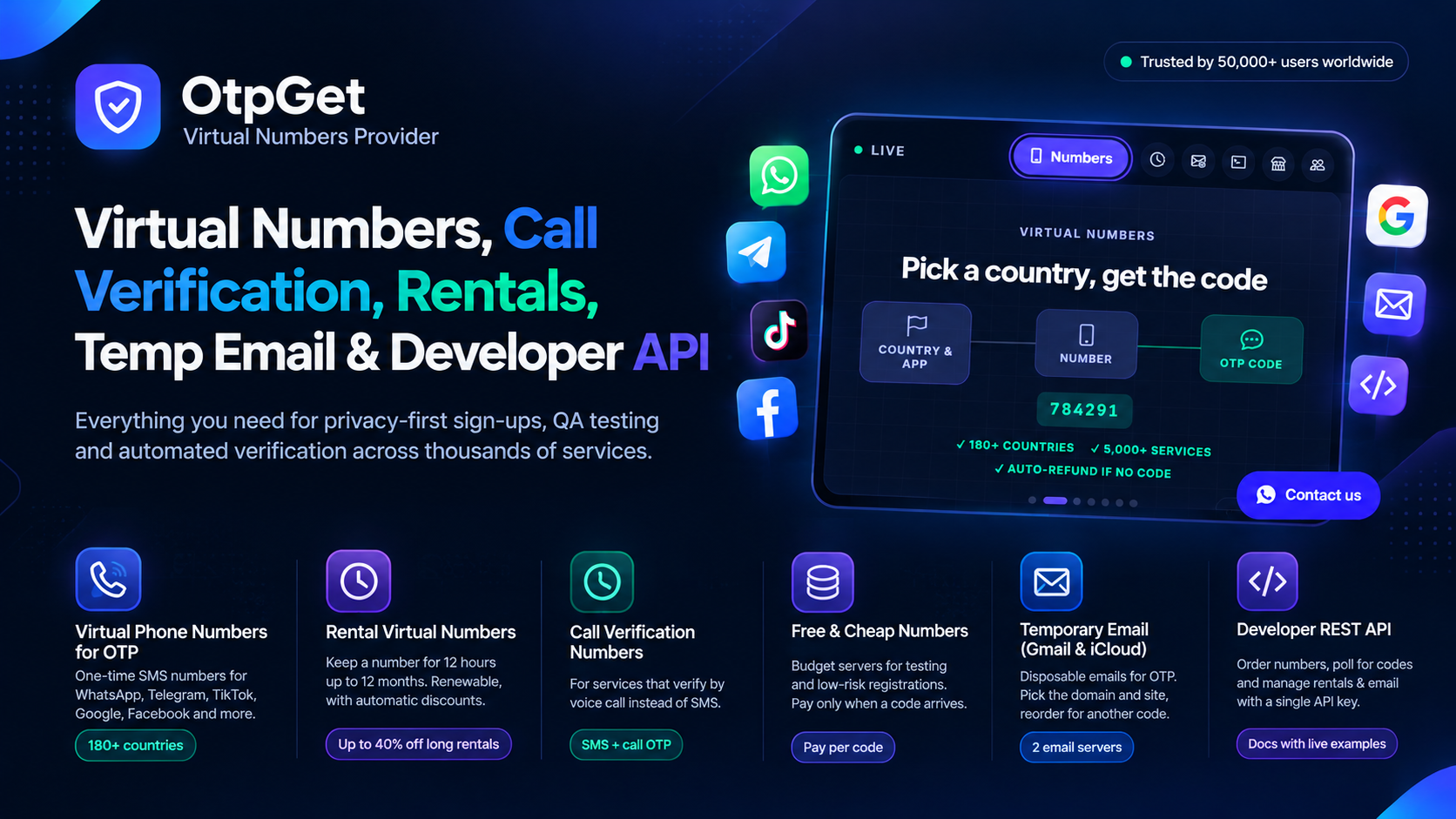
For privacy sensitive signups or testing where you do not want to use a personal number, you can get a private virtual number on OtpGet and receive the code online instead. That option removes the iPhone Messages app from the path, although each service still decides which number types it accepts.
Use a virtual number when iPhone delivery keeps failing
A virtual number gives you a separate inbox for the code. Instead of waiting for the carrier and the Messages app, you select a number, enter it in the app, and read the incoming SMS in your OtpGet dashboard. This is useful for lawful testing, development, privacy protection and accounts where a separate number makes organisation easier. Keep the number active until the verification session is complete, and do not close the page before the code arrives.
Developers who need to understand request and status flows can read the OtpGet API documentation for OTP delivery workflows. For personal use, the normal dashboard is enough. Remember that no provider can promise acceptance by every app, because the app itself controls its verification rules.
Frequently Asked Questions
Why does my iPhone receive normal texts but not OTP codes?
OTP messages usually come from automated short codes, and carriers or spam filters can treat them differently from personal texts. Check blocked senders, filtered folders and carrier short code settings. If several apps fail, the filter is more likely than any single app.
How long should I wait before requesting a new code?
Wait for the full timer shown by the app, and give delayed messages a little extra time when signal is weak. Requesting codes too quickly can trigger rate limits and create confusion when older codes arrive late. One fresh request after basic checks is the safer pattern.
Can iMessage settings affect SMS verification codes?
Verification codes normally arrive as SMS, not iMessage. Turning iMessage off and on can refresh messaging registration in some cases, but signal, filtering, carrier settings and number accuracy matter more. Test a normal SMS first to see whether basic texting works.
Will resetting network settings delete my data?
No, it does not delete photos, apps or messages. It removes saved Wi-Fi networks, passwords and some network preferences, so you will need to reconnect to Wi-Fi afterwards. Use it only after simpler checks, and request a new code only after normal texting works again.
What if codes work in every app except one?
That pattern points to the app or its sender rather than the phone. The service may have a delay, a limit on attempts or a rule about your number type. Wait for the limit window to pass, use any official email or call fallback, and contact that service if the problem continues.
Conclusion
Most otp not working on iphone cases come from filtering, timing, carrier settings or too many repeat requests rather than a broken phone. Check the number and signal first, clear filters and blocked senders, set automatic time, update carrier settings, and request one fresh code. If you prefer a separate inbox for testing or privacy, create an OtpGet account and receive verification codes online instead of relying on the Messages app.
Related reading: more OTP troubleshooting guides on the OtpGet blog